
Welcome to your school app
Your school keeps families, students, and staff connected in one place — news and posts with comments, alerts, calendars, dining menus, athletics, staff directories, and private messaging (with photos) with school staff. On your phone, or in a browser on any computer.
Group calendars with day-before reminders, and School Courier in a web browser on any computer — see What's New.
What is this app? It's your school or district's official communication app. The name, colors, schools, and exact features you see are set up by your school, so your app may show a little more or less than another school's app.
You can use most of the app right away. Signing in (with your phone number or email) unlocks the personal features: following groups, getting group notifications, and messaging staff.
Getting started
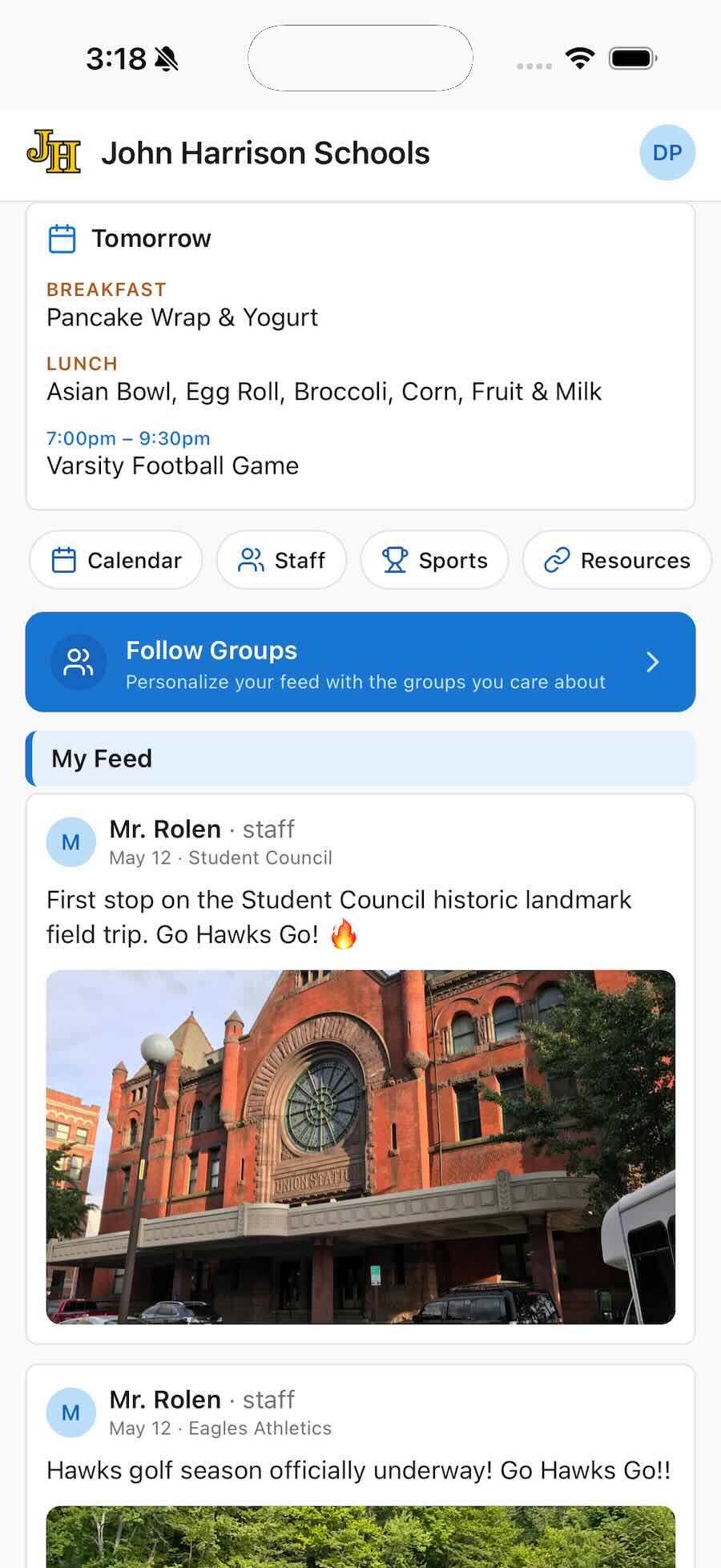
- Open the app on your phone. It opens to Home, where you'll see your school's latest posts and alerts.
- Allow notifications when you see the Stay in the loop prompt, so you don't miss closings and emergencies.
- Sign in by tapping Sign in in the top-right corner to follow groups and message staff.
- Follow groups for your child's class, team, or club — tap Groups in the bottom bar — to personalize your feed.
Help for your role
- Parents & studentsYou're in the right place — the guides below cover everything in the app. New here? Start with Getting Started.
- Teachers, staff & group leadersPosting, pinning, approvals, group permissions, passcodes, and leaders. Sign in with your Commander account. Each guide below also ends with a "For staff" section.
- AdministratorsMass alerts, users, group approval, calendars, dining, resources, and ads. Sign in with your Commander admin account.
Browse the guides
- Getting StartedOpen the app, sign in, follow groups, allow notifications.
- My FeedWhat shows up on Home, reading posts, comments, and pinned posts.
- MessagesPrivate messaging with staff — photos, read receipts, notifications.
- NotificationsAlerts, group posts, and messages — turn them on or off.
- CalendarsSchool, group, and athletic events and menus — with times, locations, and reminders.
- GroupsFollow classes, teams, and clubs; join private groups by passcode.
- Dining MenusBreakfast and lunch menus by day.
- Resources & DirectoryLinks, staff contacts, weather, supporters, and school info.
- Settings & ProfileYour account, family, preferences, and sign out.
- On a ComputerUse School Courier in a browser — the same feed, groups, calendars, and messages.
- Updating the AppSilent updates, the Restart to update button, and store updates.
- TroubleshootingFixes for notifications, missing events, sign-in, and more.
Most common tasks
| I want to… | Do this |
|---|---|
| See my school's news | Open Home — that's My Feed. |
| Get alerts about closings | Tap Enable alerts when prompted. See Notifications. |
| Follow my child's class or team | Sign in, then tap Groups in the bottom bar. See Groups. |
| Find today's lunch menu | Check the Today card on Home, or open Calendar → Dining. See Dining. |
| Message a teacher or coach | Open Messages and tap the pencil. See Messages. |
| Send a photo to a teacher | In the conversation, tap the photo button by the message box. See Messages. |
| Comment on a post | Tap Comment at the bottom of the post. See My Feed. |
| Report a post or block someone | Tap the post's three-dot ⋮ menu. See My Feed. |
| Mute a noisy group | Open My Groups and tap the bell next to the group's Joined button. See Groups. |
| See another school in my district | Tap Change on the school bar near the top of Home. See Getting Started. |
| Find a game or event's location | Tap it on the calendar, then Get Directions. See Calendars. |
| Use the app on a computer | Go to schoolcourier.app in any browser. See On a Computer. |
| Reach support | Open More → Help & Support → Ask a Question or Report a Problem, or use the contact form. See Troubleshooting. |
Not every school turns on every feature. If you don't see a tab or page mentioned in these guides, your school may not use it — that's normal.