
Updating the App
The app keeps itself up to date in the background, and you can grab most updates on demand in about ten seconds — right inside the app.
Most updates install themselves
Improvements ship as silent updates with nothing to download from a store. A waiting update applies the next time the app is fully closed and reopened — swipe the app away, open it again, done.
If your school announced something new and you don't see it yet, fully close and reopen the app. That's all it usually takes.
Update on demand: three taps
Want the newest version right now — say, support asked you to update?
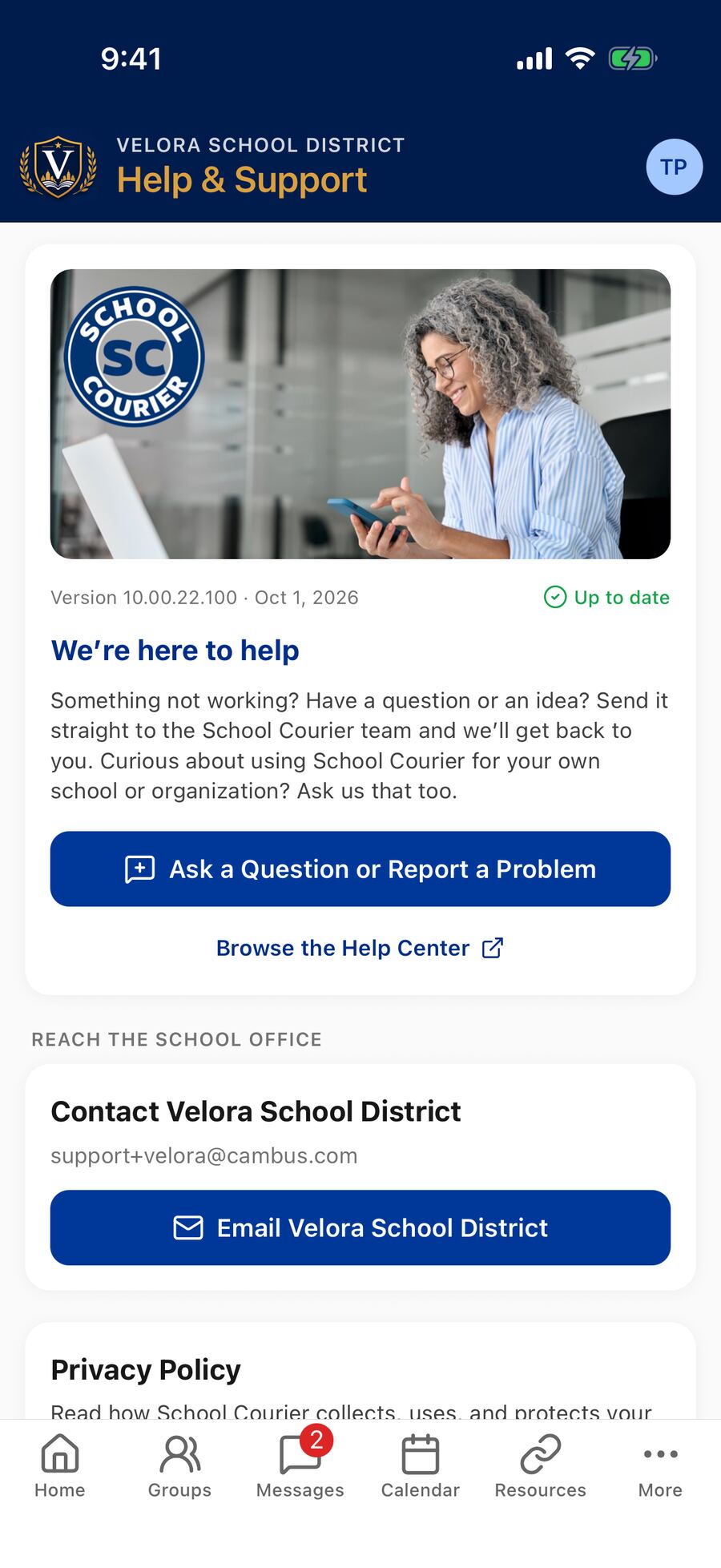
- Tap More in the bottom-right corner, then Help & Support.
- If a new version is waiting, a Restart to update button appears to the right of the version number. Tap it — the app restarts on the spot and opens on Home.
- Open Help & Support again: it now shows Up to date in green next to the version number.
If it already says Up to date, there's nothing to do — you have the newest release.
A few times a year: update from the store
Every few months there's a bigger release that only the App Store or Google Play can deliver. If your device updates apps automatically, it installs on its own. If not — or you don't want to wait — it takes about a minute:
- Open the App Store (iPhone & iPad) or the Google Play Store (Android).
- Search for your school's app by name.
- If the button next to it says Update, tap it. If it says Open, you already have the newest store version.
The app tells you when a store update matters. An Update available card appears on Home — A new version of the app is ready with the latest fixes. — with an Update button that opens the store. Not now? Tap its ✕ and it stays away for a week. If your version is too old to keep working, the app shows an Update required screen instead; tap Update now.
Turn on automatic updates so this happens by itself. iPhone & iPad: Settings → App Store → turn on App Updates. Android: in Google Play, tap your profile picture → Settings → Network preferences → Auto-update apps.
Which kind of update do I need?
The silent update can only reach a phone that's already on the current store version. So if you've fully closed and reopened the app, checked Help & Support, and still don't see a feature your school announced, install the store update above — that catches you up, and silent updates take over from there.
Your current version number is shown on the Help & Support screen; support may ask for it when helping you.