
Calendars
Find school events, your groups' own events, dining menus, and game schedules — with times, locations, and one-tap directions.
Today and Tomorrow at a glance
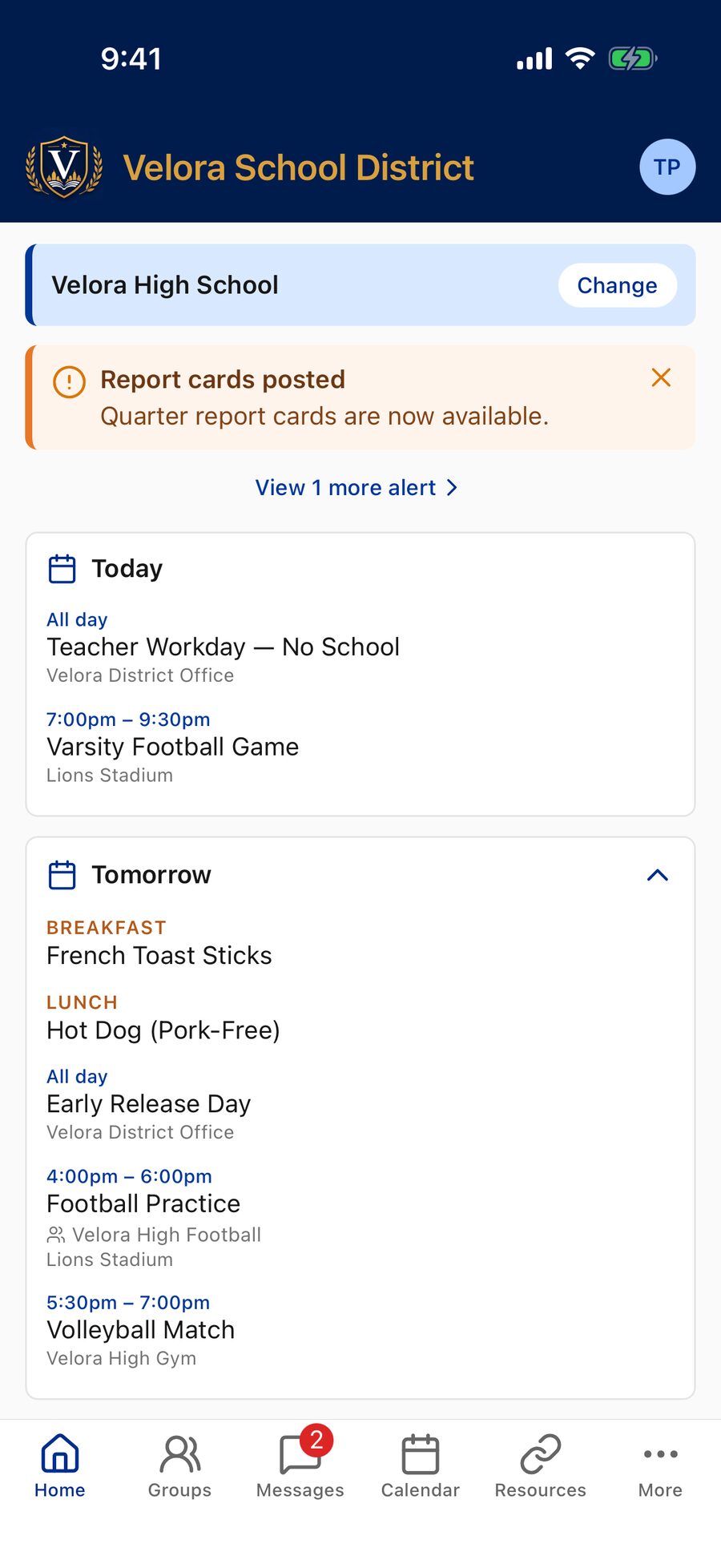
You don't have to open the calendar for the basics. The Home tab shows a Today card with the day's events, games, and meals. If the day is clear, it says Nothing on the schedule — and once today's events and meals are over, Nothing left on today's schedule.
When tomorrow has something on it, a Tomorrow card follows. It starts as a one-line summary, like 2 events · Breakfast, Lunch — tap it to see everything, and the app remembers whether you like it open or closed.
The Calendar tab
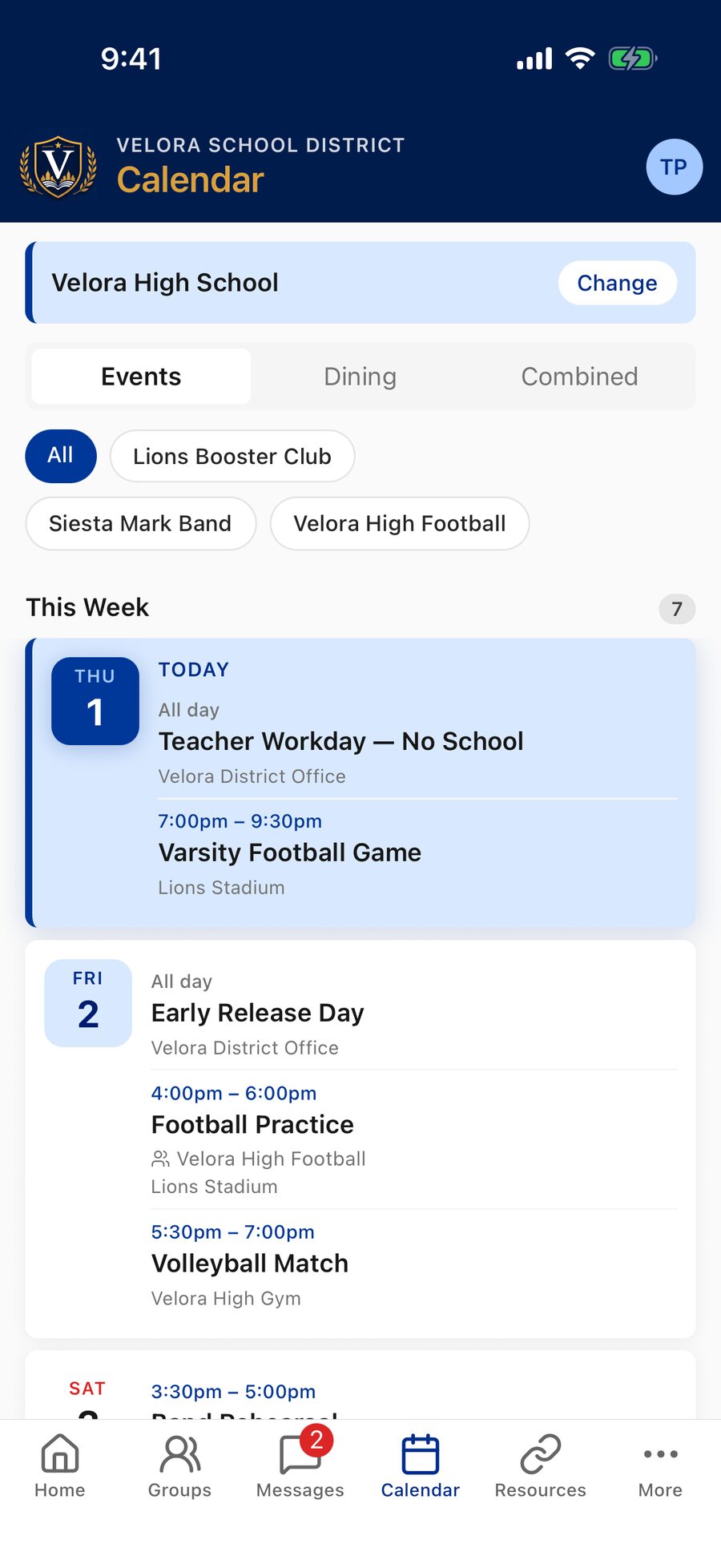
Open Calendar (in the bottom bar or from Quick Links) for the full schedule — school and district events, athletic games, and dining menus in one place. If your school publishes dining menus, tabs at the top let you switch between three views:
- Events — school and district events, including games.
- Dining — breakfast and lunch menus only. See Dining.
- Combined — events and dining together.
(Schools that don't serve meals through the app show a plain event list, with no tabs.)
The list is grouped into This Week, Next Week, Later This Month, and Next Month, with today's items highlighted so they're easy to spot. Events further out are tucked under an Upcoming section you can expand. If the calendar is empty, you'll see Nothing on the calendar yet — pull down to refresh.
How events look
Each entry shows a date tile (the day of the week and the date, like FRI 28), the event title, the time (or All day), and a location if one is provided. A location that's a real address is tappable for directions. Athletic games appear here too, alongside everything else happening that day.
Opening an event
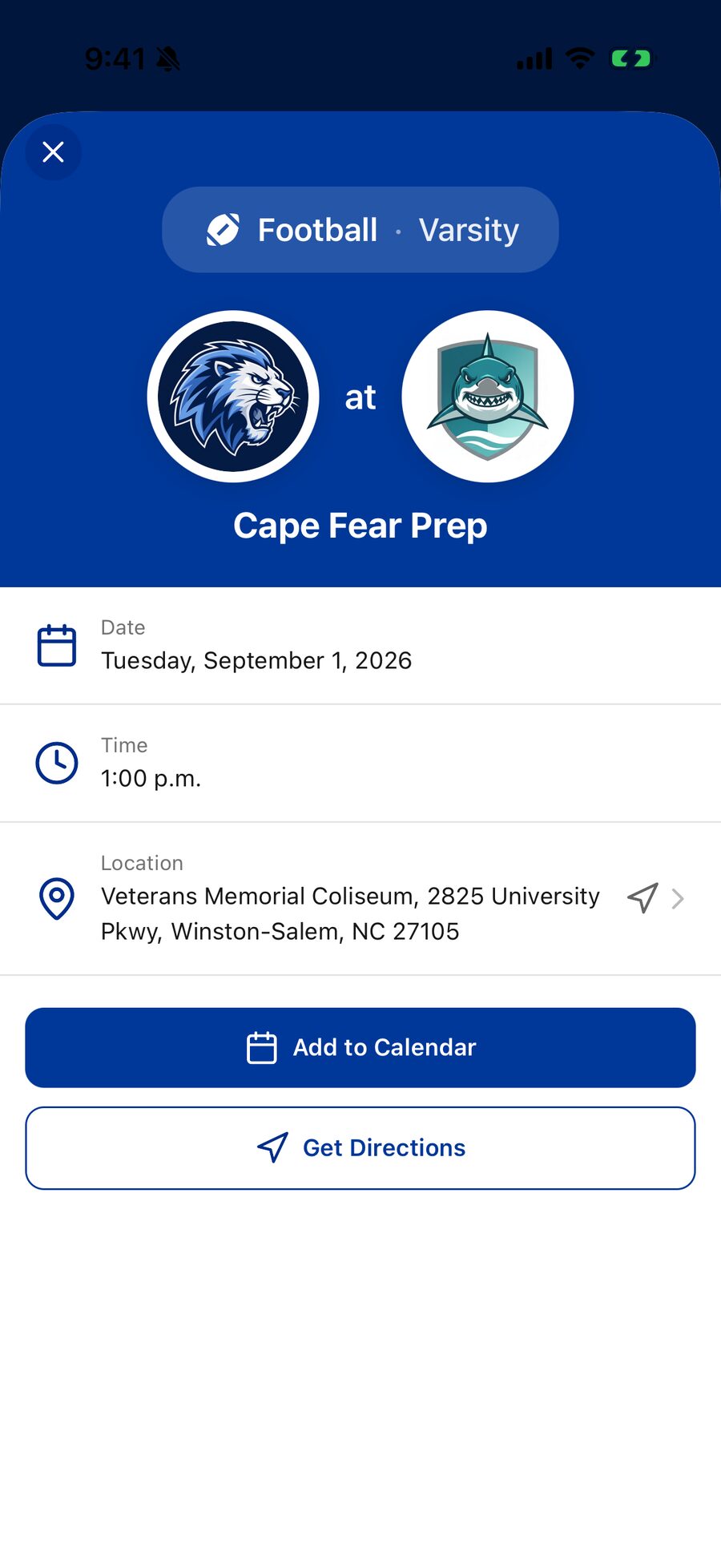
Tap any event to see its full details:
- Date — the full day and date.
- Time — start and end time, or All day.
- Location — the venue or address.
- Group — for a group's own event, which group it belongs to (and any groups it Also notifies), plus the leader's Notes.
From the event you can:
- Tap Add to Calendar to save it to your phone's calendar (available for upcoming events, in the phone app). Your phone shows its own "new event" window so you can pick a calendar and set reminders. Any notes on the event — like a bus departure time or what to wear — travel into your phone's calendar with it.
- Tap Get Directions to open the location in your maps app (shown when the location is a real address).
Group calendars
Beyond the school and district calendars, a class, team, or club can keep its own calendar. A group's leader adds events — a practice, a field trip, a booster meeting, a due date — and they appear on your Calendar tab and your Today and Tomorrow cards alongside everything else.
- Only members see them. A group's events are visible to the people who have joined that group. If you're not in the group, they simply aren't on your calendar.
- They're labeled. Each one shows the group it belongs to, so you can tell a team practice from a school-wide event at a glance.
- Filter by group. When your calendar carries events from more than one group, a row of chips appears above the list — tap one to show just that group's events, or All to see everything again.
- They work like any other event. Tap one for the full details, then Add to Calendar to copy it to your phone, or Get Directions if there's a real address.
Event reminders and announcements
Group events can reach you two ways, so a date entered weeks ahead doesn't get lost:
- A reminder the day before. You'll get a notification the day before a group event — the evening before for all-day events. It's the same group bell that controls the group's posts: mute the group on My Groups and its reminders go quiet too. See Notifications.
- A post in the feed. Leaders can also announce an event in the group's feed. They'll often set it to post a week before the event rather than immediately — so when a coach enters a whole season in one sitting, you get a timely heads-up for each game instead of thirty notifications in one evening.
Athletic and team schedules
Games appear on the school calendar — and on the Today and Tomorrow cards — right alongside other events, with a tappable venue for driving directions and the coach's notes (bus time, what to wear, admission) on the event.
For a team-by-team view, open Athletics (your school may call it Sports), pick a sport and level, and use the Upcoming and Results tabs to see the current season's games, opponents, times, locations, and final scores, plus coaches and the roster on the Team Info tab. You can add a game to your phone's calendar or get directions from either place. See Athletics.
Your school's calendars are managed by school staff. New events and changes appear after the app refreshes — pull down on the calendar to get the latest.
Which calendars are connected (school, district, dining, class/group) is set up by your school, so the exact events you see depend on how your school has it configured — and on which groups you've joined.
For staff & group leaders
If you lead a class, team, or club, you can put your group's own events on the calendar — no admin needed. When your role in at least one group has Manage group calendar turned on, a round + button appears in the bottom-right corner of the Calendar tab — the same as the one on Home. You can also add an event from the group itself: New Event in the group's ⋮ menu, or the + on its Upcoming card. Owners and leaders have Manage group calendar by default; an owner can turn it on for contributors too.
- Fill in the event. Title, the Groups it belongs to, all-day or start/end times, Location, and Notes for anything members should know — bus time, what to bring, where to park. Notes travel with the event into a parent's phone calendar.
- Check the time. A new event starts out at the next quarter-hour from now, on today's date. If you move it to another day, that time clears to Pick a time and Save asks for one — so a quiz you enter Tuesday evening for Thursday doesn't quietly land at 7:45 PM. A time you picked yourself stays put.
- Also notify. Add other groups you belong to and their members will see the event and get the reminder too — but only the groups that own the event can edit it.
- Reminder. Day before (the default) sends members a notification the day before; None turns it off.
- Feed post. Choose whether the event is announced in the group's feed: Now, Week before, or None. Week before is the default on purpose — if you enter a whole season in one sitting, each game announces itself at 8 AM a week out instead of sending thirty notifications tonight. Events less than a week away post immediately. The app remembers the choice you made last time.
- Editing and deleting. Open the event and use Edit Event or Delete Event. Changing the date re-times a pending announcement; deleting the event cancels it.
Group events are visible only to members of the groups you picked — they are not school-wide. For a school-wide or district event, ask an administrator. More in the staff help: adding events to your group's calendar.
Administrators: events, athletic schedules, and rosters are entered in the Commander — see Admin Help.