
Dining Menus
Check what's for breakfast and lunch without leaving the app — right alongside the school calendar.
The quickest way: Today & Tomorrow
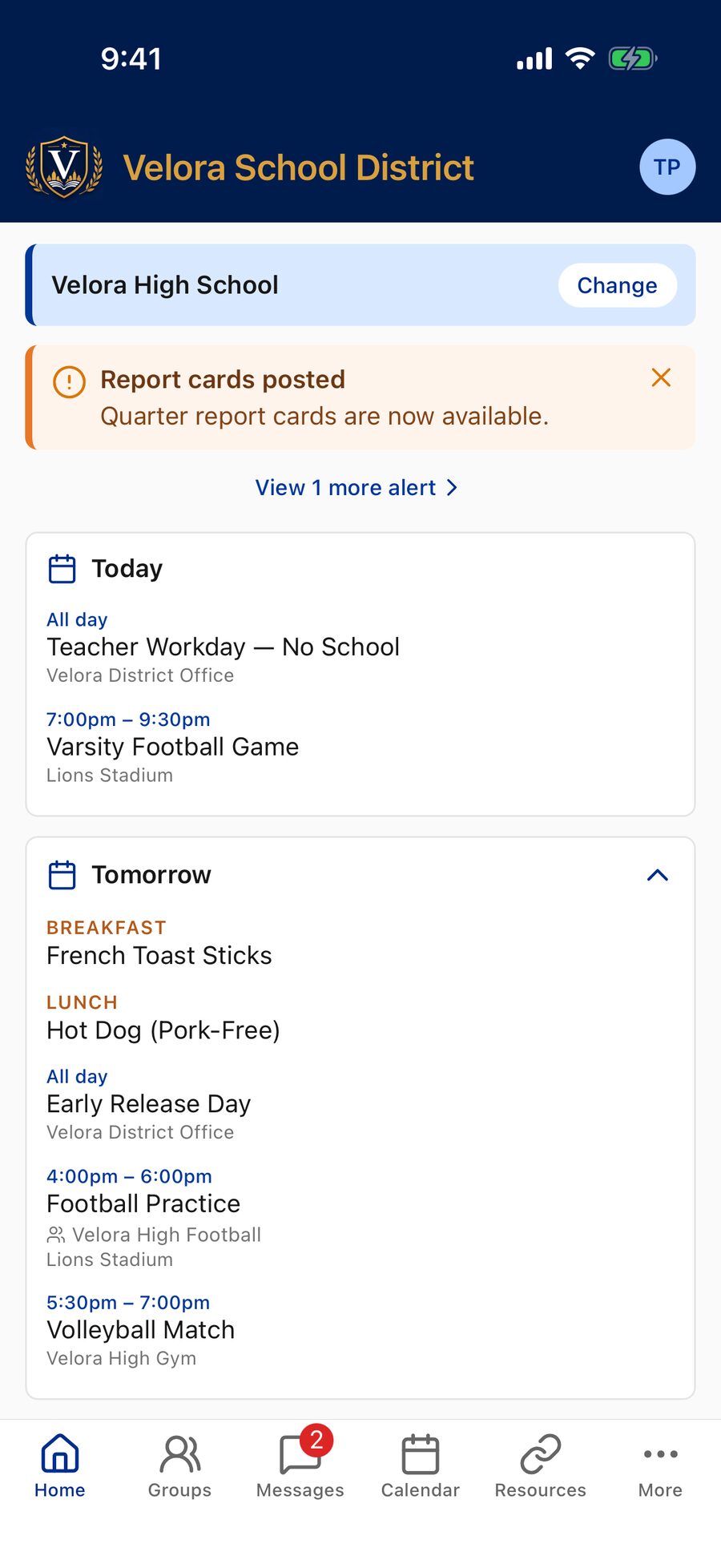
The Today and Tomorrow cards on the Home tab include that day's meals. Each meal is labeled Breakfast or Lunch, followed by the menu items. Once a meal is over — breakfast after 10 AM, lunch after 3 PM — it drops off the Today card. The Tomorrow card starts as a one-line summary (like 2 events · Breakfast, Lunch); tap it to see the menus.
Menus show everything the kitchen entered — main dishes, sides, and choices, not just the entrée. If a menu is long, it's shortened with a more link — tap it to read the full menu, and less to collapse it again.
Browsing menus by day
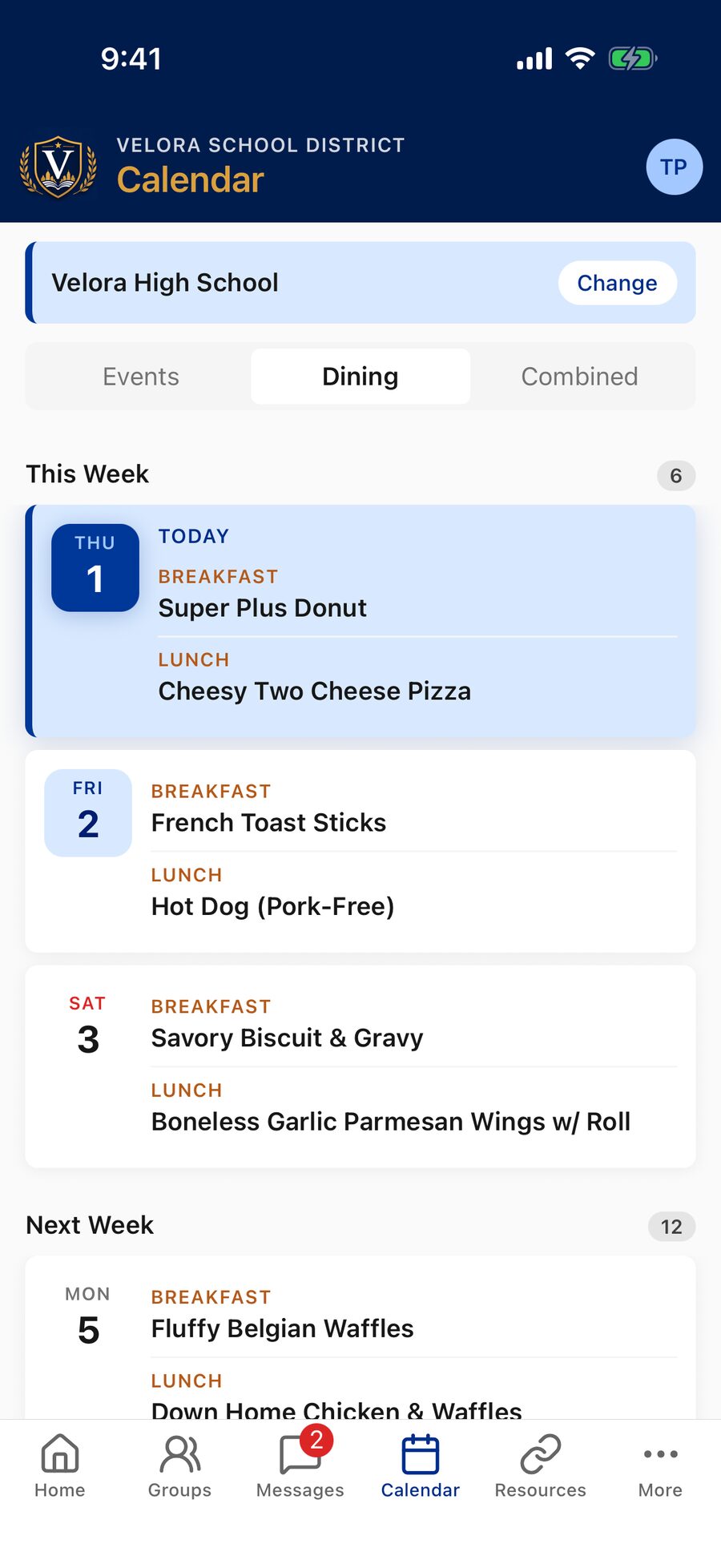
To look ahead to other days, open the Calendar tab and choose one of these views at the top:
- Dining — shows only breakfast and lunch menus, day by day.
- Combined — shows menus mixed in with school events.
Each day lists its meals with the Breakfast and Lunch labels, so you can scan upcoming days quickly. (These views appear only at schools that publish menus in the app — a school without dining menus shows a plain event calendar with no tabs.)
Finding a specific school's menu
If your district includes several schools, the menus shown follow the school your app is set to — its name appears in a bar near the top of Home and the Calendar tab. If you don't see the right menu, tap Change on that bar and pick your family's school.
Menus update as the school posts them. If a day looks empty or out of date, pull down to refresh the calendar.
Dining menus appear only when your school provides them to the app. Schools may publish full daily menus or only certain days, and not every school turns on dining menus. If your school's menus aren't showing, contact your school office.
Administrators: breakfast and lunch menus are managed in the Commander's Dining Calendar — see Admin Help.