
Getting Started
Everything you need in the first five minutes: open the app, allow alerts, sign in, and follow the groups that matter to you.
1. Open the app
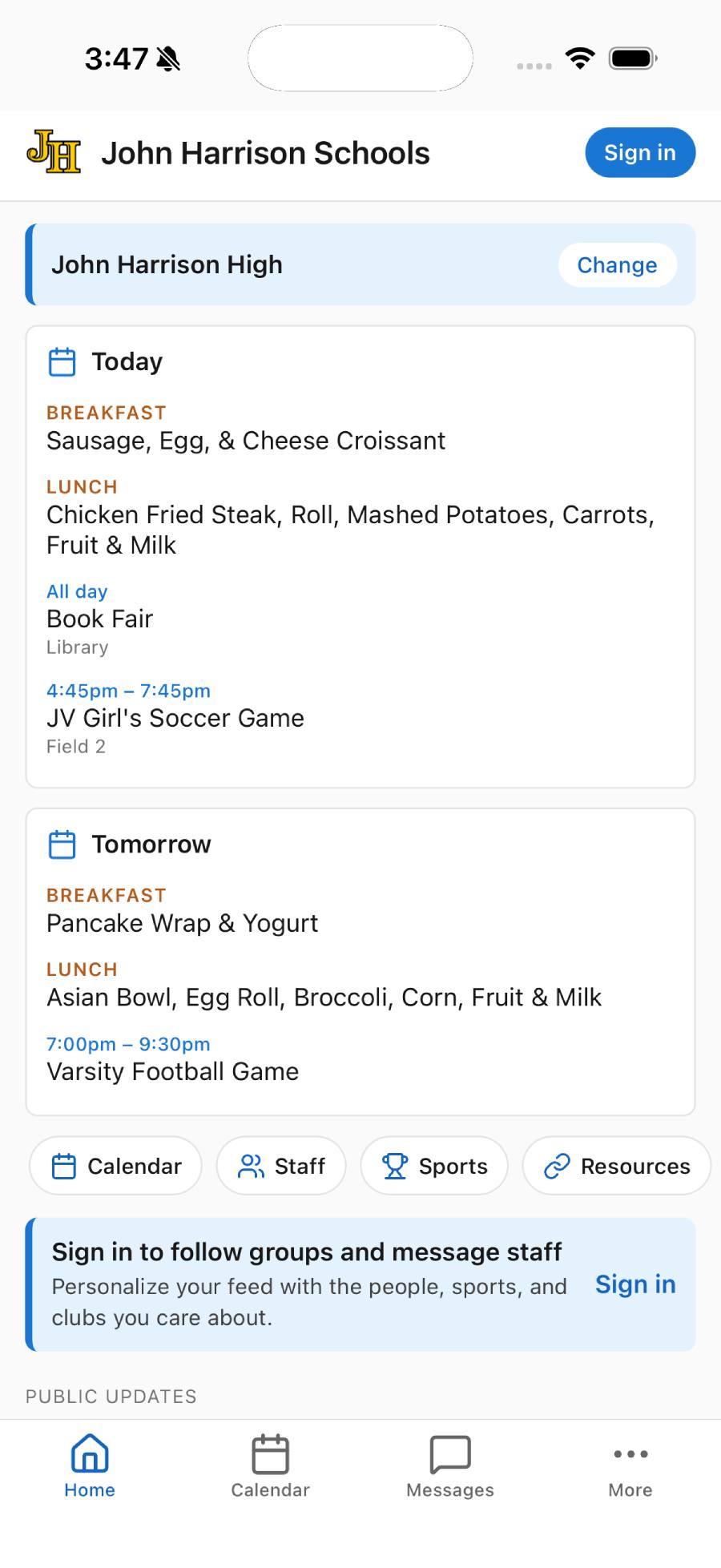
Download your school's app from the App Store or Google Play and open it. The app opens to the Home tab, which shows your school's latest posts, alerts, and today's schedule.
You can look around without signing in. Guests can see public posts, calendars, the district-wide staff directory, athletics schedules, resources, weather, and school info.
2. Allow notifications
Soon after you open the app, you'll see a card titled Stay in the loop that explains you can get school closings, emergencies, and announcements.
- Tap Enable alerts to turn on notifications. Your phone will then ask you to confirm — choose Allow.
- Not ready? Tap Not now. The app will offer again later.
School-wide alerts — like weather closings and emergencies — are sent to everyone with notifications on, even if you never sign in. Turning notifications on is the single most important step for parents who don't plan to create an account.
3. Sign in or create your account
Signing in lets you follow groups, get group notifications, comment on posts, and message school staff. It's quick — by default there's no password to remember, just a one-time code. If you'd rather use a password, you can set one (see Signing in with a password).
- Tap Sign in in the top-right corner (once you're signed in, it becomes a circle with your initials), or tap a Sign in banner on Home or Messages.
- On the Sign in or sign up screen, enter your mobile phone number. Prefer email? Tap Email at the top and enter your email instead.
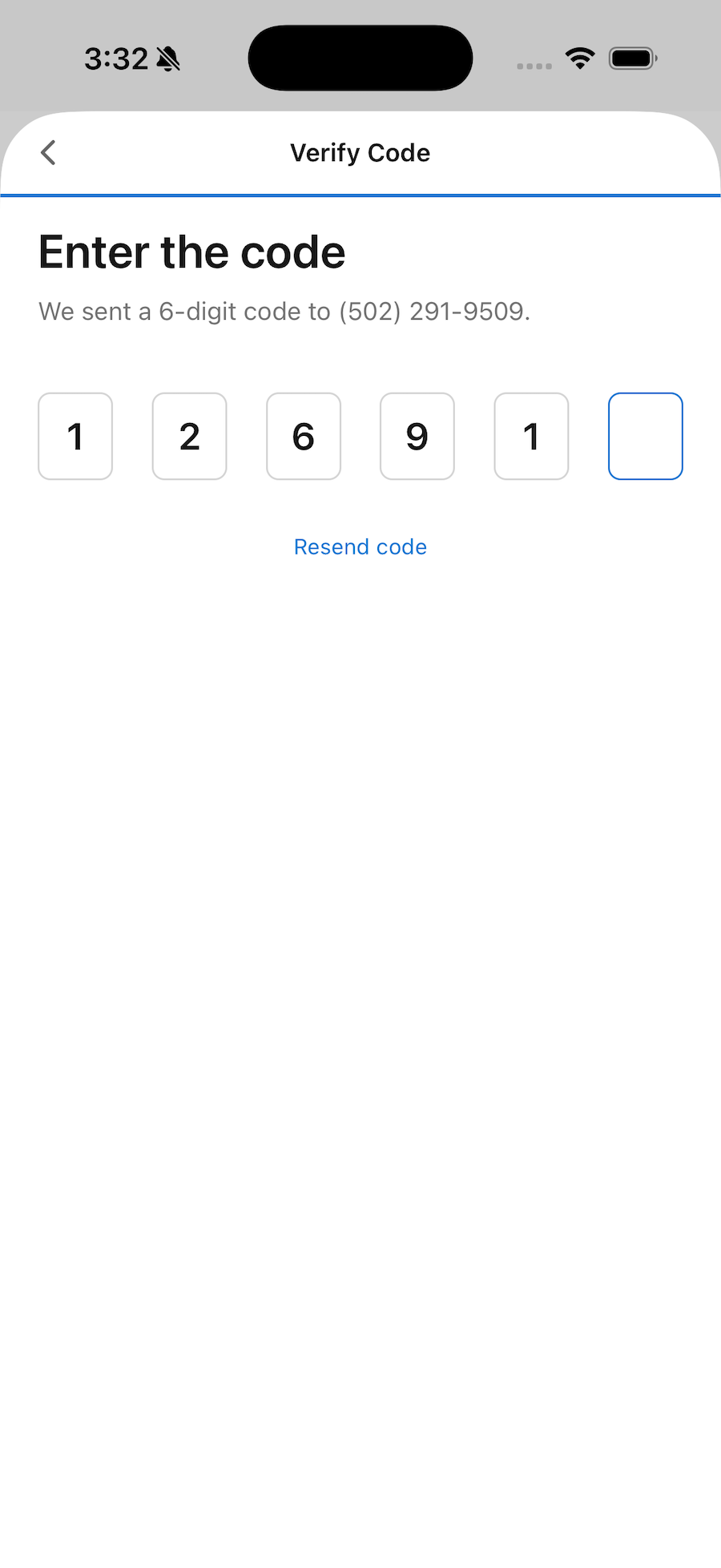
- Tap Continue. We'll text or email you a 6-digit code.
- Enter the code on the Verify Code screen. (Didn't get it? Tap Resend code. If a text can't reach your phone, the screen offers Use an email address instead.)
- If you're new, fill in a few details on Create your account and tap Create Account.
New account details
When you create an account, you'll be asked for:
- First and last name (required). Go by a nickname? Add it in parentheses, like Robert (Bob).
- I am a… — choose Parent, Student, Staff, Fan, or Other.
- Children's Name(s) — if you're a parent (or staff/other with children at the school), add their names, separated by commas. This is recommended but optional.
- Name Shown in Posts — staff only: how your name appears on your posts, such as Ms. Smith.
- An optional second way to reach you — for example, your email if you signed up by phone — so the school can contact you both ways.
Filling in your children's names lets teachers and staff find you by your student's name when they need to message you, and helps group leaders recognize your family when you request to join a class or team group.
If you sign up with an email or phone number that already belongs to an account, the app offers to link the two rather than stopping you — handy if you registered by phone once and by email another time.
Signing in with a password
One-time codes are still the default, but you can set a password so you never have to wait for a code:
- Set one anytime from Profile → Set a Password (tap the circle in the top-right corner to open Profile).
- To sign in with it, open the sign-in screen, choose Email, and tap Sign in with a password instead.
- Forgot it, or can't get to your email? Tap Forgot password? — we'll send a one-time code to your email or your phone (your choice), and you can set a new password right there.
Staff sign-in
School staff should sign in with their school email address so the school can verify their role. Tap Staff Sign In / Register (on the Messages screen) or the School staff button — Use your school email to continue — at the bottom of the sign-in screen. If you enter a personal email (like Gmail), the app will gently remind you to use your school email — and if you sign up as staff with your mobile number, the form suggests Use my school email instead, since that's how your staff permissions are applied automatically. If you started with your mobile number and switch to your school email partway through, use the code from the email — your phone may still offer the one we texted, and the app will say so.
4. Follow groups for your school life
Groups are how you personalize your feed — follow your child's class, a sports team, the band, or a club, and their posts show up in My Feed.
- Tap Groups in the bottom bar to open My Groups. (Right after you sign in, a Welcome card offers the same shortcut, and you'll also find Follow Groups on your profile and partway down your feed.)
- On My Groups, tap Join next to any public group to follow it. Groups you've joined sort to the top, and in districts with many groups a search bar helps you find one by name.
- For a private group, tap Request to Join to ask its leaders — or, if you have a passcode (your teacher or coach provides it), tap Have a passcode? Join a private group to enter it directly.
See the Groups guide for details.
5. Find important information quickly
- Today & Tomorrow: the cards near the top of Home show today's and tomorrow's events and meals at a glance.
- Bottom bar: most schools show Home, Groups, Messages, Calendar, Resources, and More. (Groups appears once you sign in, and your school may arrange the tabs differently.)
- Quick Links: the row of shortcut buttons on Home jumps straight to the pages your school uses most, such as Athletics and Staff. Each school chooses which ones appear.
- More tab: tap More in the bottom bar to reach everything that isn't already a tab — typically Athletics, Staff, School Info, Supporters, Alert History, Weather, and Help & Support.
- Pull to refresh: on most screens, swipe down to load the newest information.
Most schools have their own dedicated app that opens straight to their content. A few general versions of the app ask you to pick your district the first time you open it. If you're asked, search for and select your school to continue.
In a district with several schools, a bar near the top of Home shows which school the app is set to. Tap Change to switch — the calendar, dining menus, weather, resources, and supporters follow the school you pick.