
Groups
Groups are how you choose what shows up in your feed — follow your child's class, a sports team, the band, or a club to get their posts and notifications.
What are groups?
A group is a channel for a class, team, club, or program. When you follow a group, its posts appear in My Feed and you can receive a notification each time it posts. You manage all of this on the My Groups screen.
To open it: sign in, then tap Groups in the bottom bar. (Follow Groups on your profile, and the Groups link on the My Feed bar on Home, go to the same place.)
Public vs. private groups
My Groups lists groups in two sections:
- Public Groups — anyone at your school can find and follow these (marked with a people icon).
- Private Groups — you join these by asking the group's leaders or with a passcode (marked with a lock icon).
Each group row shows its name and member count, with a View posts link that opens the group's own page. The groups you've joined sort to the top of each section so they're never buried under a long district list. In districts with lots of groups, a search bar appears at the top of the screen for finding one by name.
Once you follow a group, a small bell appears next to its Joined button — that's its notification control (see notifications below).
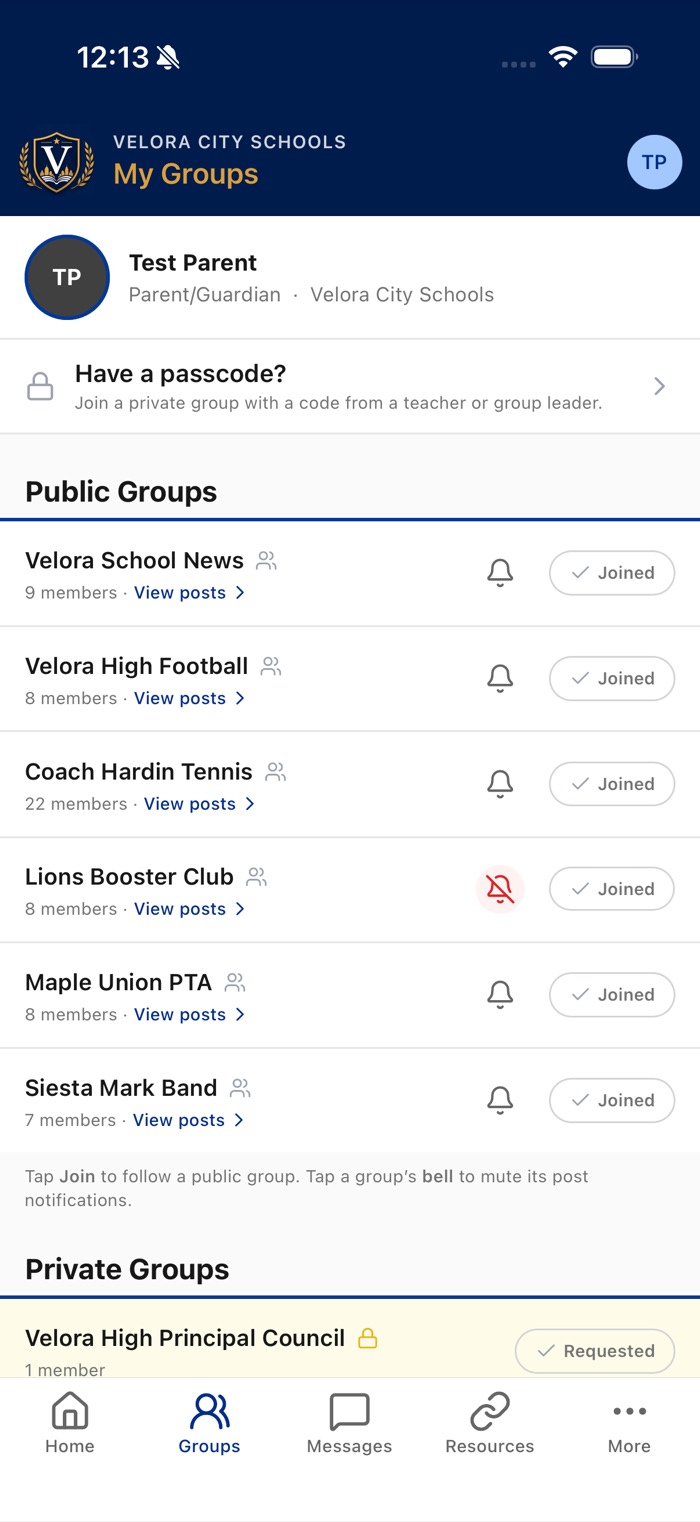
Following and leaving a group
- Find the group on My Groups.
- Tap Join next to it — for a public group, you're added right away. To leave, tap Joined, then confirm on the Leave Group prompt.
- Private groups show Request to Join instead — ask the group's leaders to let you in, or use a passcode (see below).
If both sections are empty, you'll see No groups available yet.
Joining a private group
Private groups are joined by approval or with a passcode from your teacher, coach, or group leader.
- Request to join: tap Request to Join on the group's row. Its leaders are notified, the button changes to Requested, and you'll get a message when a leader approves (or declines) your request.
- Have a passcode? Tap Have a passcode? Join a private group near the top of the screen and enter the code — you're added right away, and the app confirms exactly which group you just joined. This also works for hidden groups that don't appear in the list.
- If the passcode is wrong, you'll see an error and can try again.
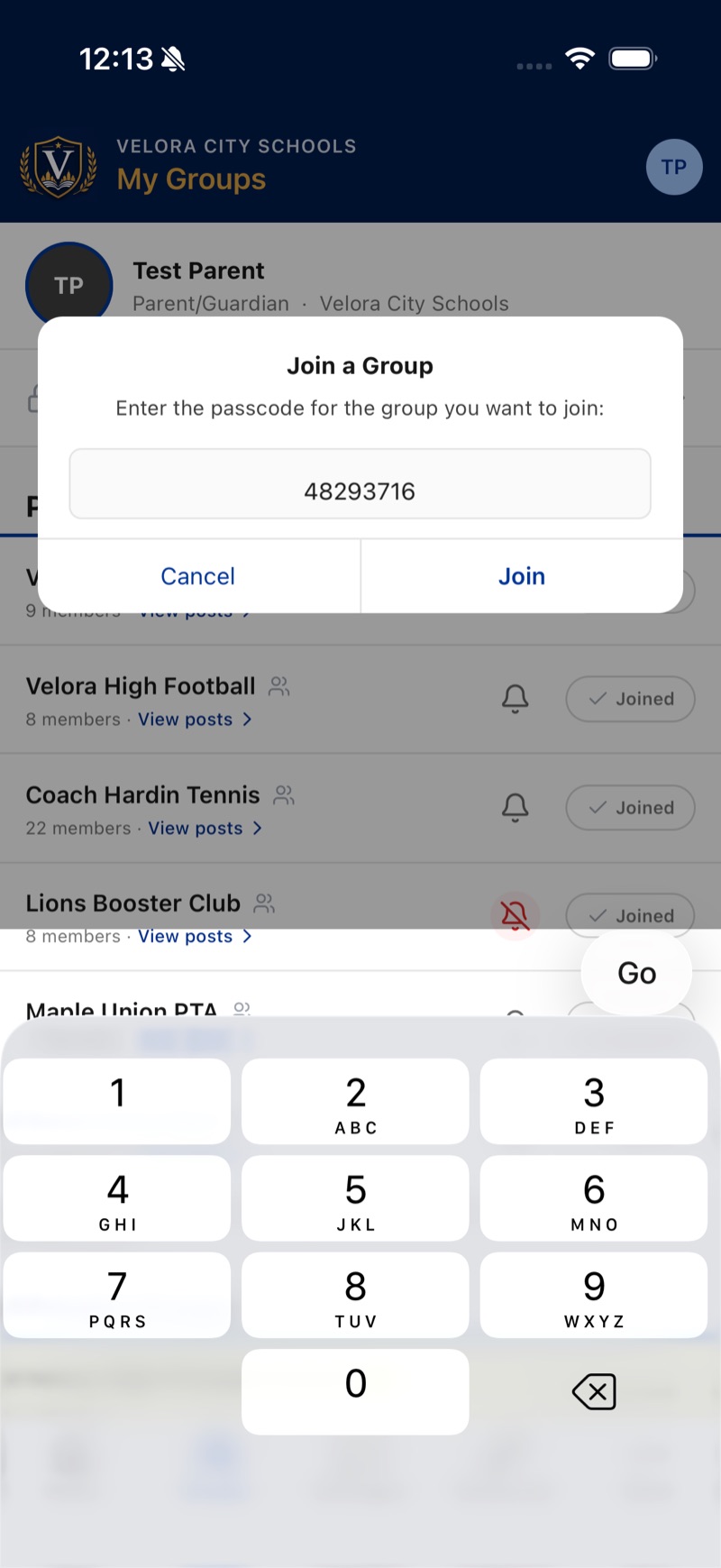
Group posts, events, and notifications
- Posts from groups you follow appear in My Feed on Home.
- Events a group puts on its calendar show on the Calendar tab and the Today and Tomorrow cards — and at the top of the group's own page (tap the group on My Groups), in an Upcoming card listing the next few. Tap Show 3 more (or however many there are) for the rest, or an event for its details. See Calendars.
- Notifications for new group posts arrive as push notifications on your phone — you'll get them even when the app is closed (unless you mute the group).
- Mute a group: tap the bell next to the group's Joined button. The bell turns red and crossed out when the group is muted; tap it again to turn notifications back on. The bell only appears on groups you follow, and not on a group you own. (You'll still see the group's posts in the app — muting only stops the push alerts.)
Members, contributors, leaders, and owners
Groups have four roles. The owner can fine-tune what each role is allowed to do in their group, so details vary a little from group to group — but typically:
| Role | What they can typically do |
|---|---|
| Member | Follow the group, read its posts, and mute or unmute its notifications. Where the group allows it, members can also comment (often with a leader reviewing comments before others see them). |
| Contributor | Everything a member can do, plus share posts to the group — usually reviewed by a leader before everyone sees them. |
| Leader | Everything a contributor can do, plus post without review, approve members' and contributors' posts and comments, pin posts, add events to the group's calendar, and help manage the member list. |
| Owner | Everything a leader can do, plus manage the group — edit its settings and each role's permissions, add leaders, view the passcode, and delete it. |
For staff & group leaders
Set as Default
If you can post to several groups, you can mark one as your Default from the ⋮ menu (Set as Default). That group is then pre-selected whenever you create a post, so you don't have to pick it each time. A Default badge appears next to its name. This option only appears for people who can post.
Roles and permissions
Owners control what each role — leaders, contributors, members — can do in their group. In the app: the group's ⋮ menu → Edit Group → Member Permissions. Each role has three one-tap presets — Trusted (acts like a leader), Moderated (shares with approval), and Read & react (comments only) — or you can fine-tune posting, commenting, and member management individually. See group permissions in the staff help.
Approvals
When something needs a leader's OK — a member's post or comment, or a request to join a private group — approvers get an in-app message with Approve/Deny buttons, and a Pending approvals row appears at the top of My Groups listing everything waiting on you, photos included. That row shows a count of what's waiting, and Home shows an approvals waiting card above Today until your queue is empty. If something sits for more than a day, School Courier sends a gentle reminder — see Notifications. The first approver to act decides. A denied post isn't gone — its author keeps it, marked Not approved, and can edit it to resubmit; editing an approved post sends it back for review. See reviewing approvals.
Managing members from your phone
Owners and leaders get a full View Members screen from the group's ⋮ menu: the roster sorted by role, a search box, and a menu on each person to Make Leader, Make Contributor, Make Member, or Remove from Group. The owner can also use Add People to invite people by search or email. No laptop needed. See managing members.
Creating and managing groups
Creating and editing groups (the New button, adding leaders, setting passcodes) is available to staff who have been granted permission and whose email is verified. If you need group-management access, contact your school administrator.
A quick guide to visibility: open groups need no approvals or passcodes and any signed-in user can read their posts, while private groups keep content with the families you approve — and an open group with auto-subscribe can even appear on the public feed for people who haven't signed in, so treat those posts as fully public.
Step-by-step guides — creating a group, passcodes, adding leaders, contributors, and members, group approval — are in the staff help (sign in with your Commander account).
Administrators: approve new groups, reassign owners, and manage any group's members from the Commander — see Admin Help.