
Messages
The Messages tab is for secure, private, 1‑to‑1 conversations between families and school staff — with photos, read receipts, and admin oversight built in.
Who can message whom
Messaging is designed for family ↔ staff conversations: parents and students can reach teachers, coaches, and staff, and staff can reach the families in their school. Students and parents can't message each other through the app, and the app notes that Conversations are reviewed by school administrators — messaging is built to be safe for school use.
You need to be signed in to send or receive messages. See Getting Started.
Starting a conversation
- Open Messages in the bottom bar and tap the pencil button.
- Search for a staff member by name and tap them to begin. Staff who keep office hours show them right in the search results.
- Type your message and tap send.
You can also message the author of a post directly: some posts include a Message button next to the author's name — tap it to start a conversation with that person.
Your inbox
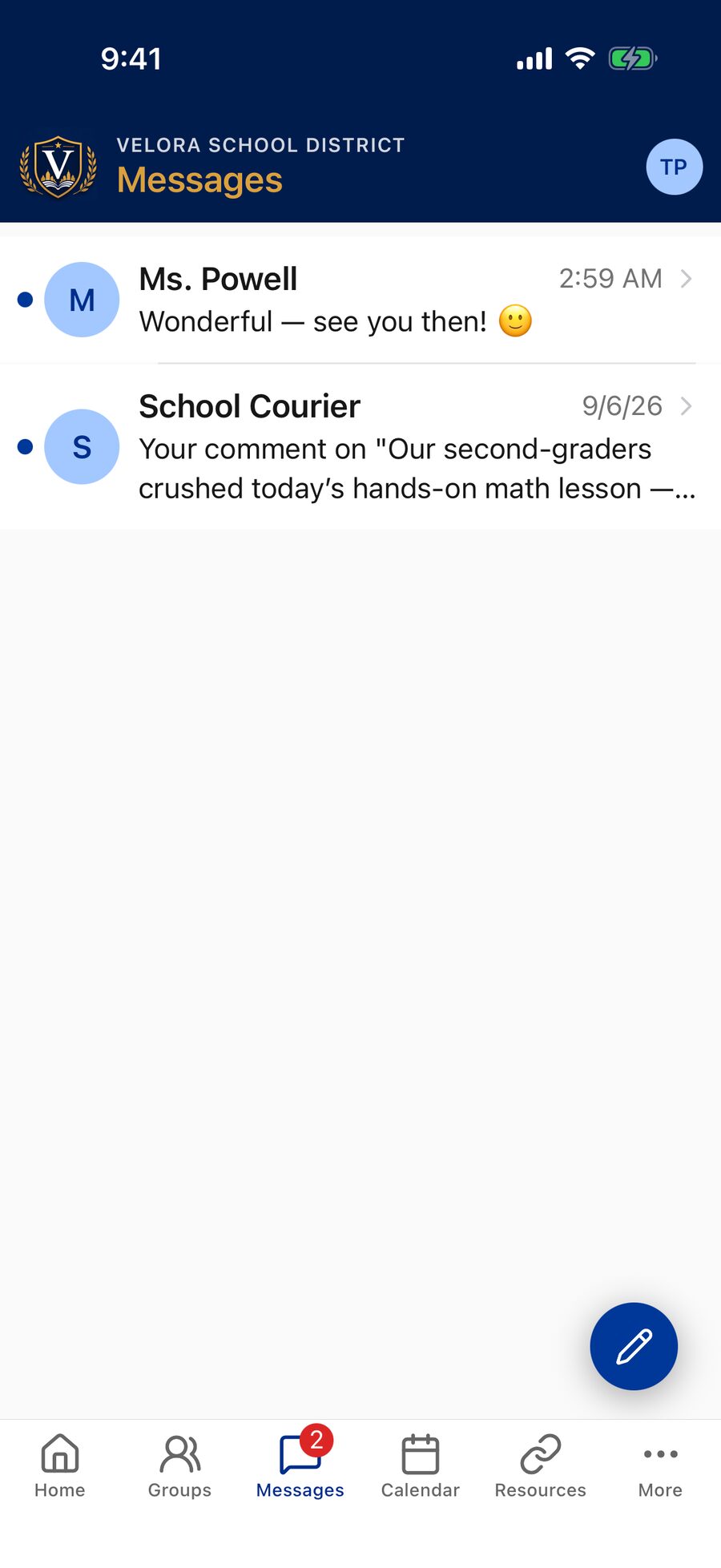
The inbox lists your conversations, newest first, with an unread badge when someone replies. A new inbox shows No conversations yet. Tap the pencil to start a message with school staff.
Sending photos
Tap the photo button to the left of the message box to take a picture with the camera or choose up to 4 photos from your library. Photos appear right in the conversation — tap one to view it full screen — and you can send them with a written message or on their own. From the full-screen view, the share button in the top-right corner lets you save the photo, print it, or send it on.
Read receipts
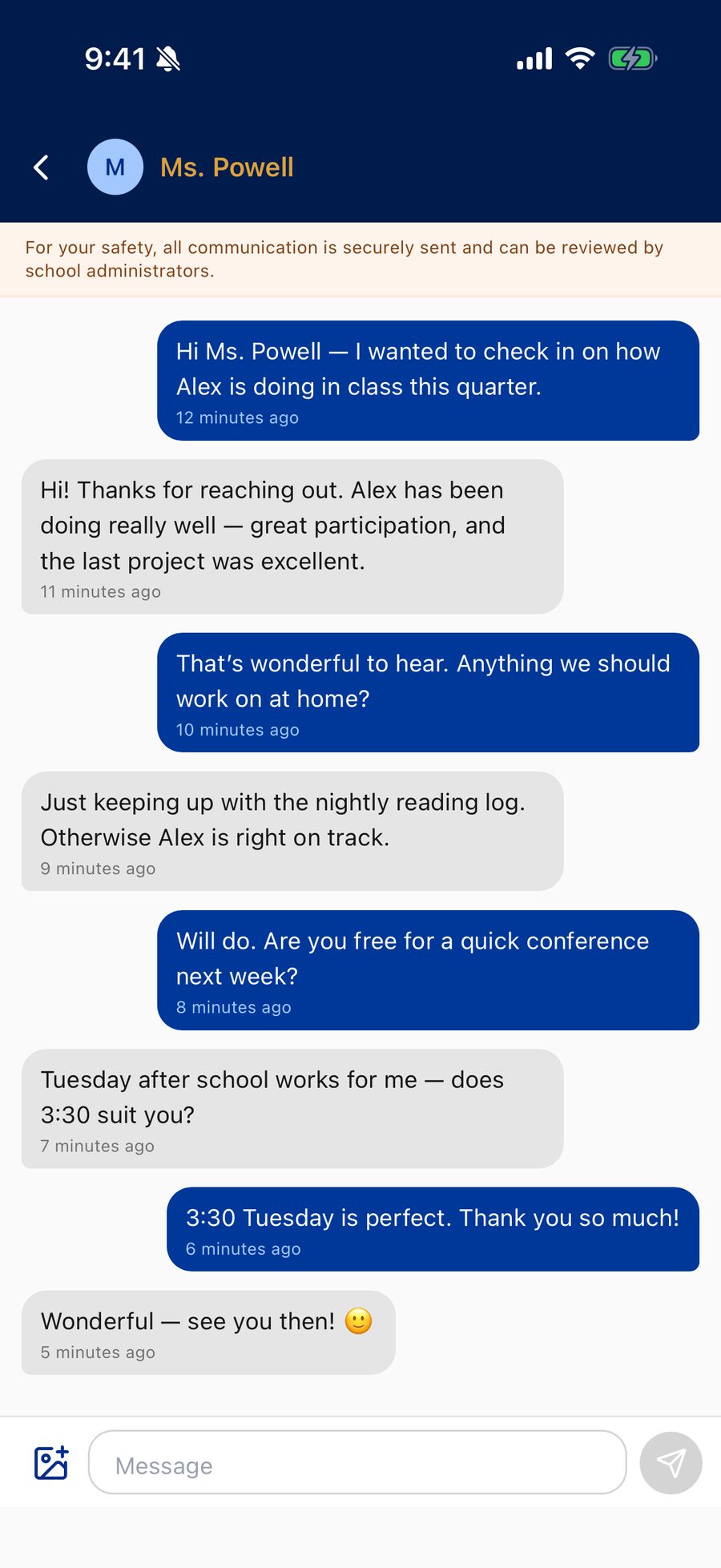
Under your most recent message you'll see Sent, which changes to Read (with a time, like Read 3:42 PM) once the other person has opened the conversation. So when a message matters, you'll know it was actually seen.
Messaging a teacher or staff member? Many staff set office hours in the app. You'll see them under the person's name at the top of the conversation, and if you write outside those hours a note reminds you that a reply will come during office hours (your message still goes through right away, and it shows Sent outside office hours underneath). A staff member's Read only appears for messages they open during their office hours, so a late-evening glance won't show as read until the school day. Some schools turn staff read receipts off entirely.
Writing a message
- Plenty of room: a message can be up to 4,000 characters. If a send ever fails (for example, on a bad connection), the app tells you rather than quietly dropping it.
- Links are live: web addresses, email addresses, and phone numbers in a message are tappable — even ones typed as plain text.
- Copy text: long-press a message to select and copy text out of it.
Long conversations
A conversation opens at the newest message. To revisit older messages, scroll up — a long thread offers to load earlier messages at the top.
Message notifications
You'll get a push notification when a message arrives, and a small red number appears on the Messages tab and the app icon while you have unread messages. To turn message notifications on or off, open your profile → Notifications → Messages. See Notifications.
Search uses the staff member's name as it appears in the app. If someone doesn't come up in message search, they may not be reachable by direct message — some schools keep certain staff (like a head of school) out of parent messaging. You can still reach them by email or phone through the Staff Directory — and staff you can message show a Message button on their directory card, which opens a conversation directly.
If the app says Couldn't start a conversation, the reason is shown underneath — for example, This staff member is not accepting direct messages. Use their email or phone from the Staff Directory instead.
Messaging is available only when your school has turned it on — if yours hasn't, there's no Messages tab in the bottom bar. Demo/preview accounts also can't send messages.
For staff & group leaders
Find a parent by their student's name. When you search for someone to message, typing a student's name also finds that student's parents — no more looking up the family name first. This works from the children's names on each parent's profile, so encourage families to fill that field in (see Settings & Profile).
Approvals arrive as messages. If you lead a group, requests that need your OK — a contributor's post or comment, or a request to join your private group — arrive as messages from School Courier with Approve and Deny buttons right on the card. Everything waiting is also listed, with a count, under Pending approvals on My Groups. See reviewing approvals in the staff help.
Administrators: review conversations and control who can be messaged — including keeping specific staff out of parent messaging — from the Commander. See Admin Help.