
My Feed
The Home tab is your school's home base — news, alerts, today's schedule, and shortcuts, all in one scrolling view.
What is My Feed?
When you're signed in, the main list of posts on Home is labeled My Feed. It's personalized to the groups you follow — your child's classes, teams, and clubs.
When you're not signed in, the same area is labeled Public updates and shows only posts your school has made public.
What appears on Home
From top to bottom, Home can include:
- Your school — in a district with several schools, a bar showing which school the app is set to, with a Change button to switch.
- Alerts — the latest school alert (a closing, weather, an urgent update) in a highlighted card. Tap its ✕ to put it away until the next alert arrives, or View 2 more alerts (when there are others) to open Alert History.
- Today and Tomorrow cards — a quick look at events and meals for the next two days. The Tomorrow card starts as a one-line summary, like 2 events · Breakfast, Lunch — tap it to see everything. If there's nothing scheduled, it says Nothing on the schedule (or Nothing left on today's schedule once the day's events are over).
- Quick Links — shortcut buttons to the pages your school uses most, such as Athletics and Staff.
- Questions about the app? — at some schools, a small card with a Contact us button that opens the support form. Tap its ✕ to hide it.
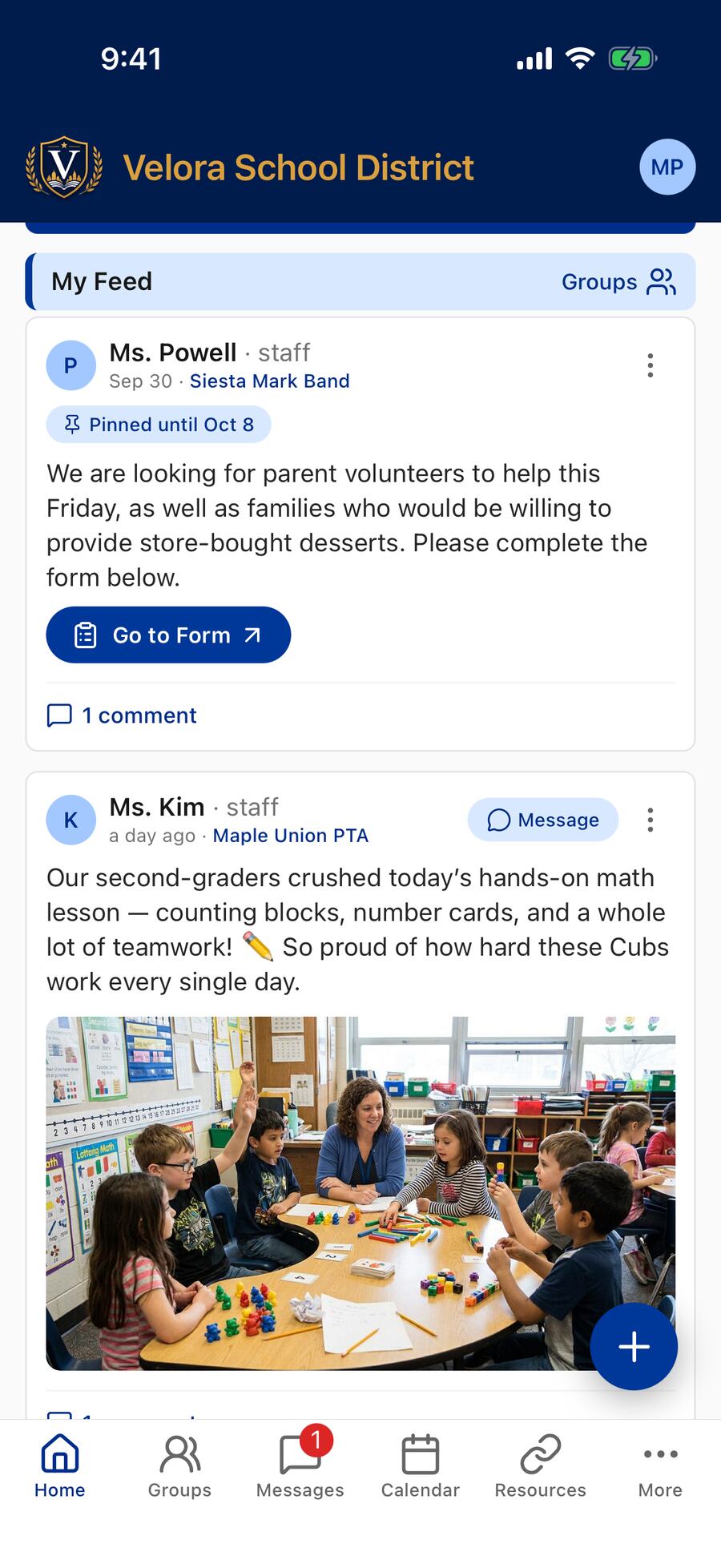
- Posts — updates from your school and the groups you follow, under a My Feed bar with a Groups link on the right.
- Follow Groups — when you're signed in, a blue button a few posts down inviting you to Personalize your feed with the groups you care about.
If there are no posts yet, you'll see No posts yet — pull to refresh. Swipe down to check for new content anytime.
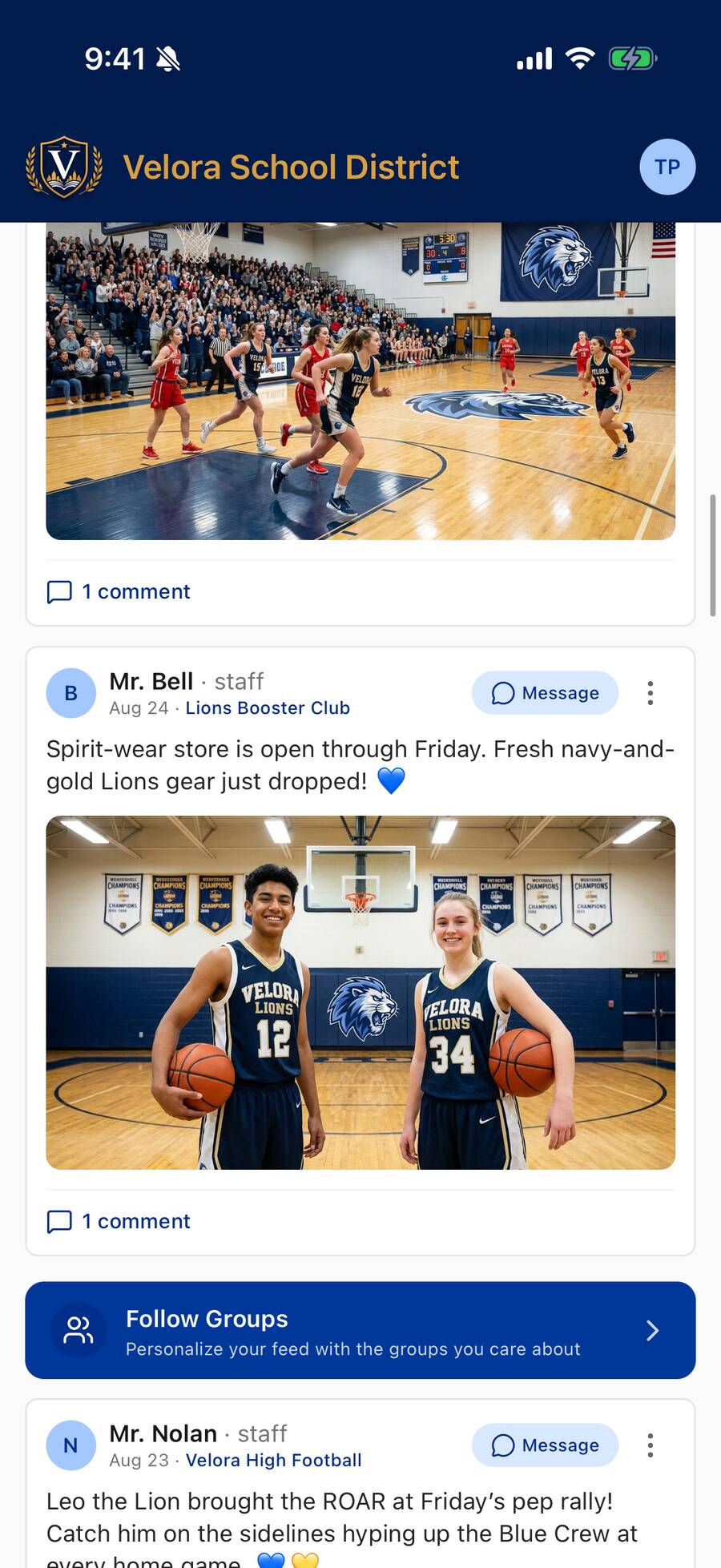
Reading a post
Each post shows:
- The author's name and role, when it was posted, and the group it was shared to. Official announcements may be posted under the school or district's own name instead of a staff member's — those don't show an author to tap or message.
- The message. Long posts are shortened with a more link — tap it to read the rest, and less to collapse it. Web links show as a short button with the site's name, like SignUpGenius › (or a small arrow and a short address, like ↗ cnn.com… ›, for other sites) — tap it to open the page in your phone's browser, or in the site's own app (YouTube, Google Drive) if you have it. A Google Form shows as a Go to Form button and opens right inside the school app. Email addresses and phone numbers are tappable too, and you can long-press to select and copy text.
- Any photos — a post can carry up to 25. Tap an image to view it full screen; pinch to zoom and swipe between images. The share button in the top-right corner of the full-screen view opens your phone's share sheet, where you can save the photo, print it, or send it on. A big gallery shows a +12-style tile for the photos beyond the grid.
- A link button if the author attached a video or article — tap it to open in your browser.
- A Comment link at the bottom (or a count like 3 comments) — tap it to read or join the conversation. See Comments below.
- Some posts carry a Pinned badge — see Pinned posts below.
Messaging an author
Some posts include a Message button next to the author. Tap it to start a private, 1‑to‑1 conversation with that person (for example, to reply to a teacher). You need to be signed in to send messages. If the app says Couldn't start a conversation, the reason is shown underneath — see Messages.
Pinned posts
Teachers and group leaders can pin an important post — a deadline, a permission slip, a big game — so it stays at the top of the feed instead of scrolling away. Pinned posts show a Pinned badge. When the pin runs out (or a leader unpins the post), it returns to its normal place by date.
People who can pin also see when the pin ends — the badge reads like Pinned until Oct 8. For everyone else it simply says Pinned.
Comments
Comments let families respond to a post — say thanks, ask a question, or answer one. You need to be signed in to comment.
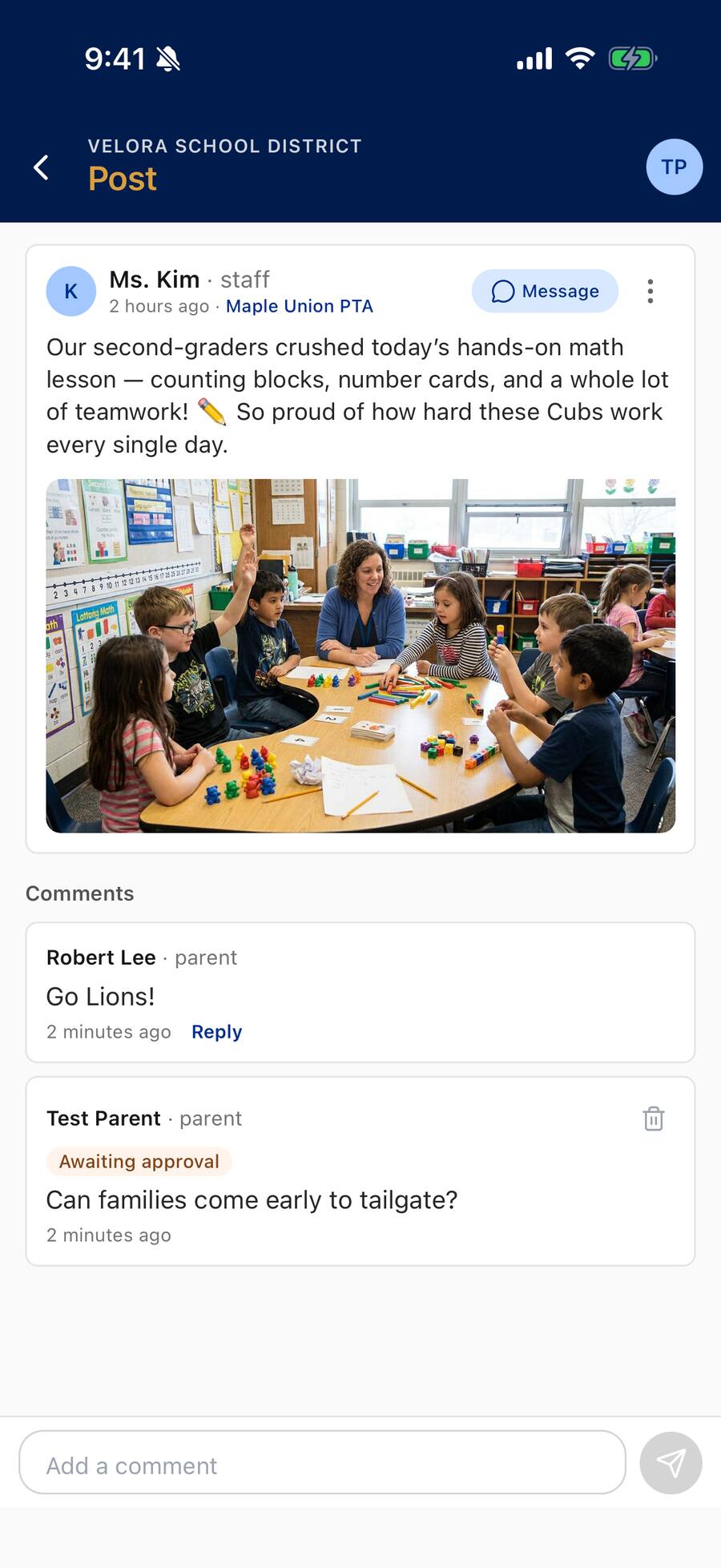
- Tap Comment (or the count, like 3 comments) at the bottom of a post. The post opens with its conversation below it.
- Type in the Add a comment box and tap the send button.
- To respond to a specific comment, tap Reply under it. A Replying to… tag appears above the box, and your reply shows indented under that comment.
- See what's new at a glance: a post you've already opened shows a badge like 2 new on the feed when comments have arrived since your last look.
- Deleting a comment: tap the small trash icon on your own comment. Group leaders can also remove comments in their groups.
- Some comments are reviewed first. In many groups, a group leader checks comments before everyone can see them. If yours needs review, the app says Sent for approval and shows an Awaiting approval tag on it — only you can see it until it's approved. If a leader declines it, the tag changes to Not approved.
- Comments can be turned off. The author or school can close a post to comments — those posts simply show no comment link.
- Notifications: you'll get a push notification when someone comments on your post or replies to your comment. You can turn these off — see Notifications.
Reporting a post or blocking someone
If a post seems inappropriate, you can report it — and if there's someone whose posts and comments you'd rather not see, you can block them (sign in first):
- Report a post: tap the three-dot ⋮ button in the post's corner and choose Report post. The report goes to the support team, who review it within 24 hours.
- Block someone: from the same ⋮ menu, choose Block followed by the person's name. You won't see any posts or comments from them anywhere in the app, in any group, until you unblock them.
- Unblock: open your profile, tap Blocked Users, then Unblock next to the name.
Blocking a teacher or coach also hides their future school updates from you. If you just want fewer updates, leaving or muting a group is the lighter option — see Groups.
If you're not signed in
Guests can read public updates, but the feed will gently encourage you to sign in:
- A banner reads Sign in to follow groups and message staff (just Sign in to follow groups at schools that don't use private messaging).
- After the first couple of posts, a card reads Sign in to see more from your school.
- At the bottom of the feed, a note says Showing public updates only — sign in to follow teachers, sports, and clubs.
Tap any Sign in button to unlock your personalized feed. See Getting Started.
Private messaging
The Messages tab is for secure, 1‑to‑1 conversations between families and school staff — including photos and read receipts. It has its own guide: see Messages.
For staff & group leaders
If you can post to a group — as its owner, a leader, or a contributor — a blue + button appears on Home for creating a post. You choose which of your groups to post to, write your message (with Writing Help a tap away for polishing or translating it), and can add up to 25 photos or a link (see links in posts). The composer's Publish row can also schedule the post for later — write tonight, publish tomorrow morning; only you can see it until then (see scheduling posts). The post button names where it's going (like Post to 5th Grade). Members are notified about 30 seconds after you post, and a bar on Home lets you tap Undo post until then, so a post sent to the wrong group can be taken back before anyone is notified (see posted to the wrong group). You can also edit or delete your own posts from the post's ⋮ menu. Most parents and students won't see this button. See Groups for who can post.
Leaders can also pin an important post to the top of the feed from its ⋮ menu, and — in groups that review content — approve members' posts and comments before they appear. If your own post shows Pending approval — only you can see this, it's waiting for a leader's OK.
Posting details — permissions, multi-group posts, editing and deleting, pinning, comments, and approvals — are in the staff help (sign in with your Commander account).
Administrators: view, edit, hide, or delete any post in your district from the Commander — see Admin Help.