
Notifications
Notifications keep you informed about closings, emergencies, group posts, and messages — even when the app is closed.
Turning notifications on
The first time it matters, the app shows a card titled Stay in the loop. Turning notifications on takes two taps:
- Tap Enable alerts. (Or tap Not now — the app will offer again later.)
- Your phone then asks for permission itself. On an iPhone the message reads "(your school app)" Would Like to Send You Notifications. Tap Allow.
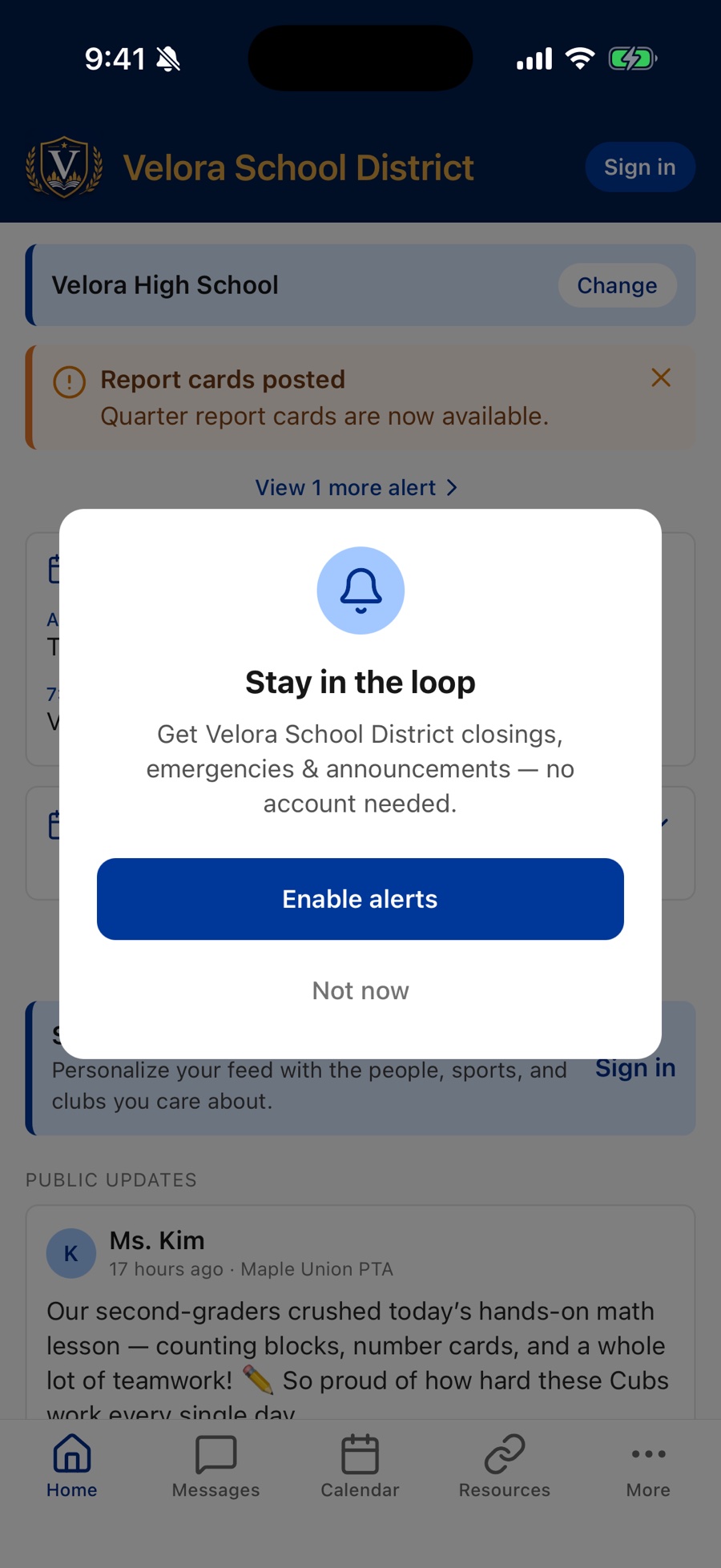
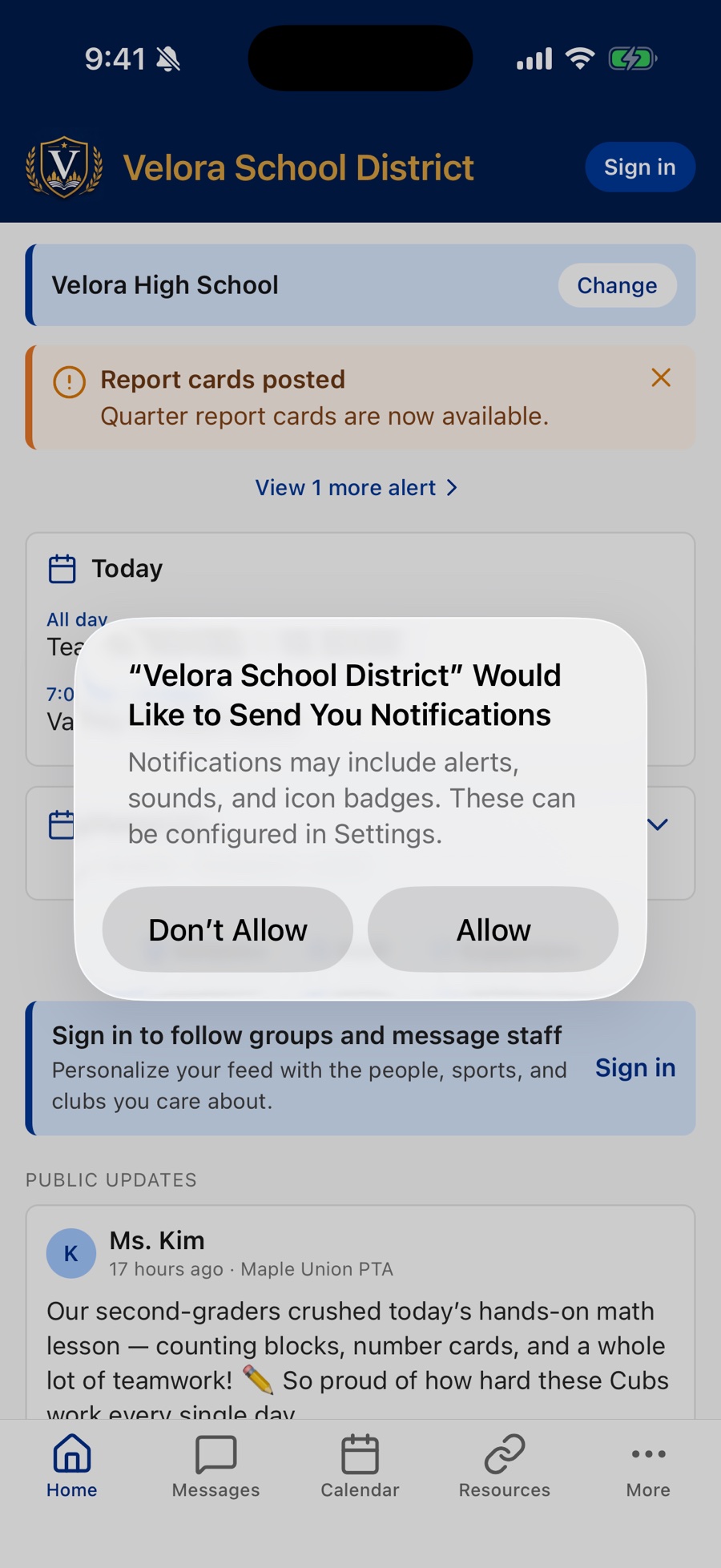
Take care on that second screen: if you tap Don't Allow, the app can't ask again, and notifications have to be turned back on in your phone's Settings — see Common issues below.
Once you allow notifications, you'll receive your school's school-wide alerts (like closings and emergencies) even if you never sign in. Signing in adds personalized notifications on top of that.
The kinds of notifications
| Type | What it is | Who gets it |
|---|---|---|
| School-wide alerts | Closings, severe weather, and urgent district or school messages. | Anyone with notifications turned on. |
| Group posts | New posts in a class, team, or club you follow. They arrive about 30 seconds after the post goes up, so the author can catch a mistake first. | Signed-in members of that group (unless you've muted it). |
| Messages | A direct message from a teacher or staff member. | Signed-in users. |
| Event reminders | A reminder the day before an event on one of your groups' calendars — the evening before, for all-day events. | Signed-in members of that group (unless you've muted it). See Calendars. |
| Comments | Someone commented on your post, replied to your comment, or added to a conversation you commented on. | Signed-in users. |
| Approvals | A post, comment, or join request waiting for your OK — it arrives as a message from School Courier with Approve/Deny buttons. If it is still waiting after a day, a reminder follows by notification and email. | Group owners and leaders. See Groups. |
When you have unread messages, a small red number appears on the Messages tab and on the app icon.
If a notification arrives while you're using the app, it shows as a brief banner sliding down from the top of the screen (on iPhone, with a short buzz if the app's sounds are on) — tap it to jump to the post or message, or swipe it up to dismiss it.
Choose what you're notified about
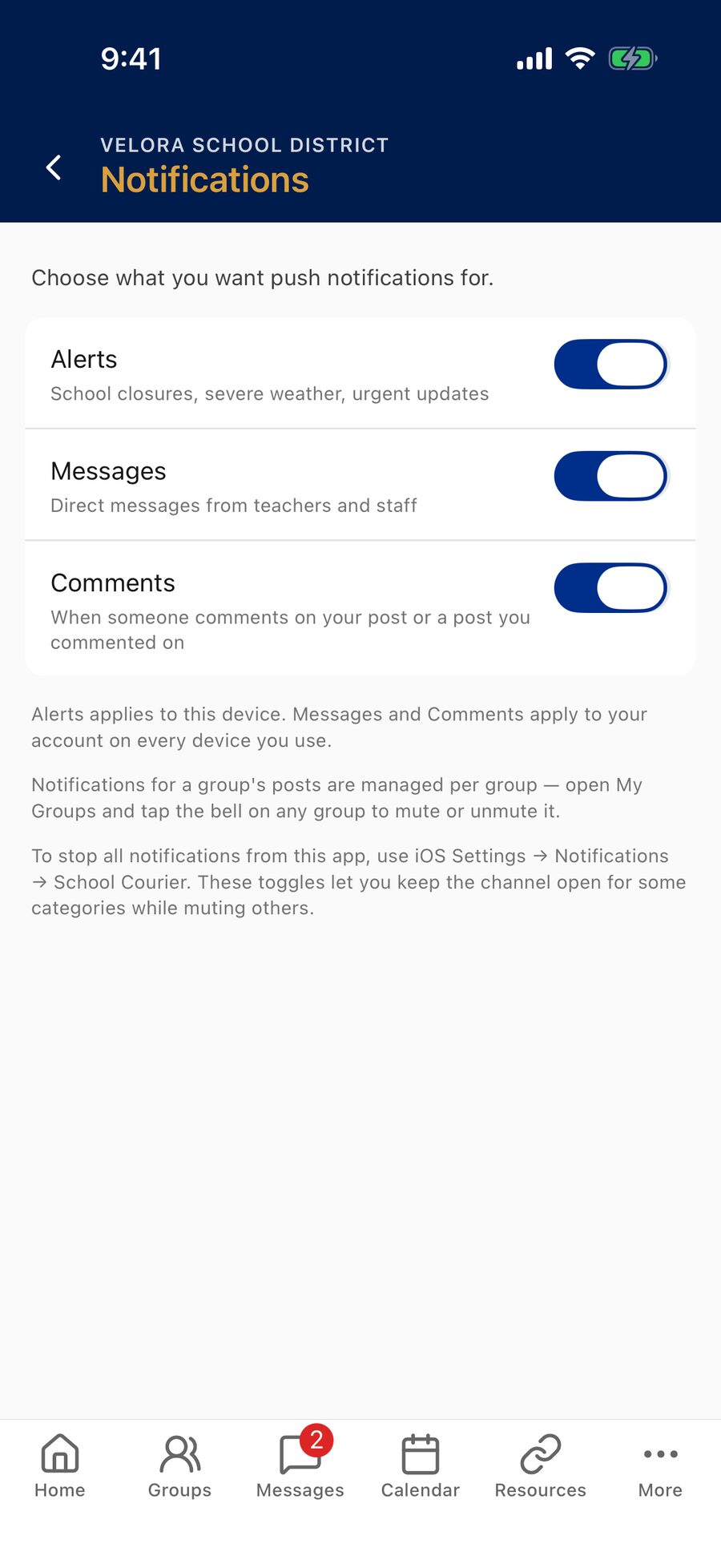
Open your profile (tap the circle in the top-right), then go to Notifications. There you'll find simple on/off switches:
- Alerts — School closures, severe weather, urgent updates. Applies to this device.
- Messages — Direct messages from teachers and staff. Applies to your account on every device you use. Shown when you're signed in.
- Comments — When someone comments on your post or a post you commented on — replies to your comments included. Applies to your account on every device you use. Shown when you're signed in.
Group owners and leaders see a fourth switch, Approval reminders — see For staff & group leaders below.
Mute a single group
Notifications for a specific group's posts are controlled per group, not on the Notifications screen. To quiet one busy class or team while keeping the others:
- Tap Groups in the bottom bar (or Follow Groups on your profile) to open My Groups.
- Tap the bell next to the group's Joined button. It turns red and crossed out, meaning the group is muted. (A group you own has no bell — owners always hear about their own group.)
- To start receiving its notifications again, tap the bell once more.
You'll still see the group's posts in your feed when you open the app — muting only stops the push notifications. Muting a group also silences its event reminders. See Groups.
Turning notifications off completely
To stop all notifications from the app, use your phone's settings:
- iPhone: Settings → Notifications → (your school app) → turn off Allow Notifications.
- Android: Settings → Apps → (your school app) → Notifications.
The note at the bottom of the in-app Notifications screen points you there too.
Common issues
- Not getting any notifications? Make sure you tapped Allow, and check your phone's notification settings for the app.
- Not getting group posts? Confirm you're signed in, you've followed the group, and the group isn't muted.
- Tapped "Don't Allow" by mistake? Turn notifications back on in your phone's Settings for the app (the app can't ask again once you've declined).
- Still nothing — even after checking Settings? As a last resort, delete the app and reinstall it from the App Store or Play Store, then tap Allow when it asks about notifications the first time it opens. Reinstalling re-registers your phone for alerts with a fresh connection. You'll need to sign in again afterward — your groups (including private ones) and settings are saved to your account and will be right where you left them.
More fixes are in Troubleshooting.
The Alerts switch is saved on your device; the Messages, Comments, and Approval reminders switches are saved to your account and apply on every device you're signed in on. To silence a specific group, use its bell on My Groups, described above; to silence everything, use your phone's system settings.
For staff & group leaders
Approvals and reminders
When a post, comment, or join request needs your OK, it arrives as a message from School Courier with Approve/Deny buttons. If it is still waiting after a day, School Courier reminds the group's owner on the next school-day morning: a notification, a short message, and from the second reminder an email. There are at most three reminders over about a week, then they stop. Other leaders of the group are reminded only if the owner hasn't acted. Tapping a reminder opens Pending approvals.
The Approval reminders switch
Owners and leaders get a fourth switch on the Notifications screen: Approval reminders — A reminder by push and email when join requests, posts, or comments are waiting on you. It covers both the notification and the email, and it is saved to your account, so it applies on every device you use.
Turning it off stops the reminders only. New requests still reach you as messages, and everything waiting stays listed under Pending approvals on My Groups. Parents and students never see this switch.
Quiet evenings and weekends
To keep evenings and weekends quiet without turning messages off, use Hold notifications outside office hours on your Office Hours screen — see Office hours.
More on reviewing what's waiting is in the staff help.
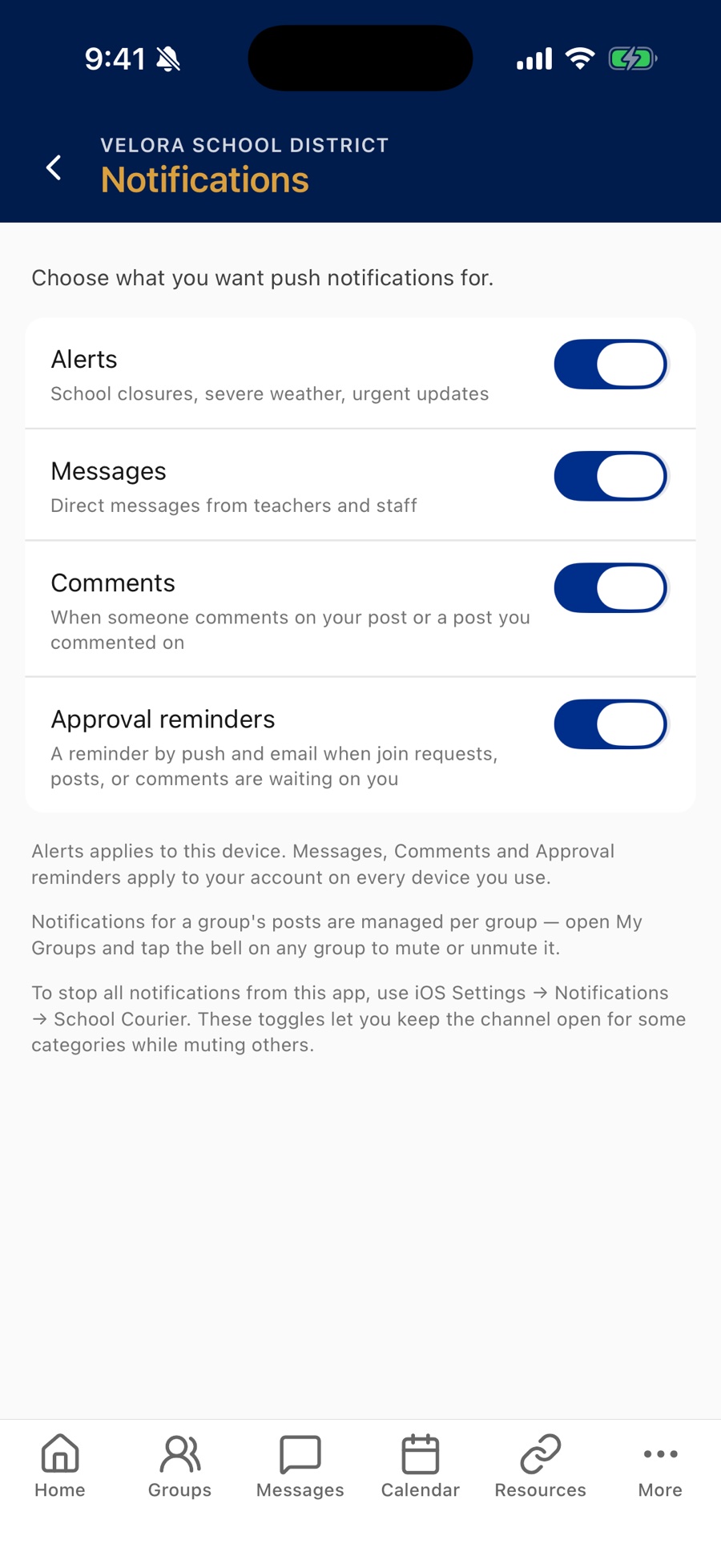
Administrators: school-wide alerts are sent from the Commander's Mass Alerts page — see Admin Help.