
Resources & Directory
Beyond the feed, the app gathers the everyday information families need: links, staff contacts, athletics, weather, community supporters, and school details.
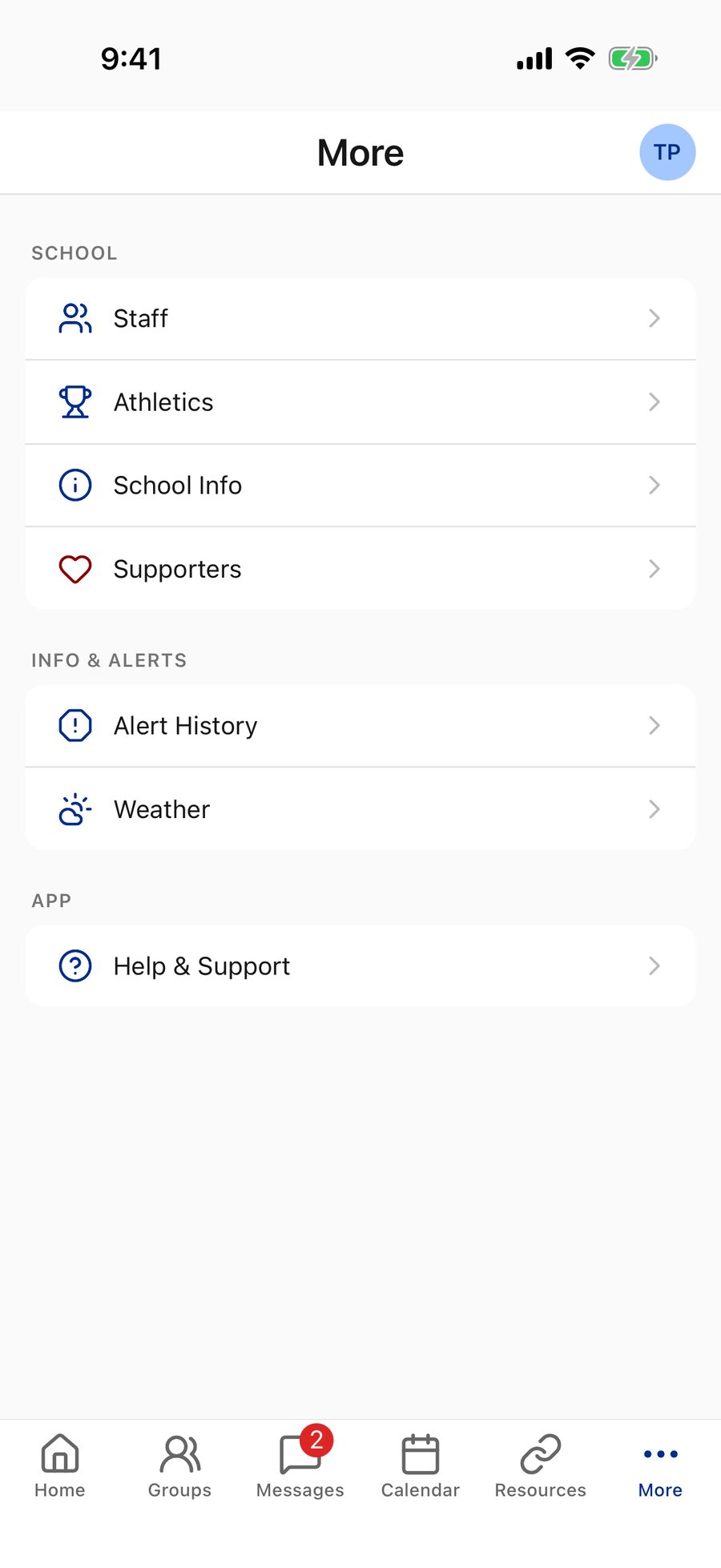
At most schools Resources has its own tab in the bottom bar, and the rest of these live under the More tab. Several also appear as Quick Links shortcuts on Home — by default Athletics, Staff, and Supporters.
Resources (links & tools)
Open Resources for a curated list of helpful links and tools — described in the app as Helpful links and tools for parents, students, and staff. Links are grouped by topic; tap any one to open it in your browser. When your school has a long list, a Search resources… box and topic chips appear at the top to narrow it down. If none are set up yet, you'll see No resources available yet.
Schools can mark certain resources — a family directory, a handbook, a tuition portal — as sign-in only. Those links simply don't appear until you're signed in, so if a link you were told about is missing, sign in and check again.
Staff Directory
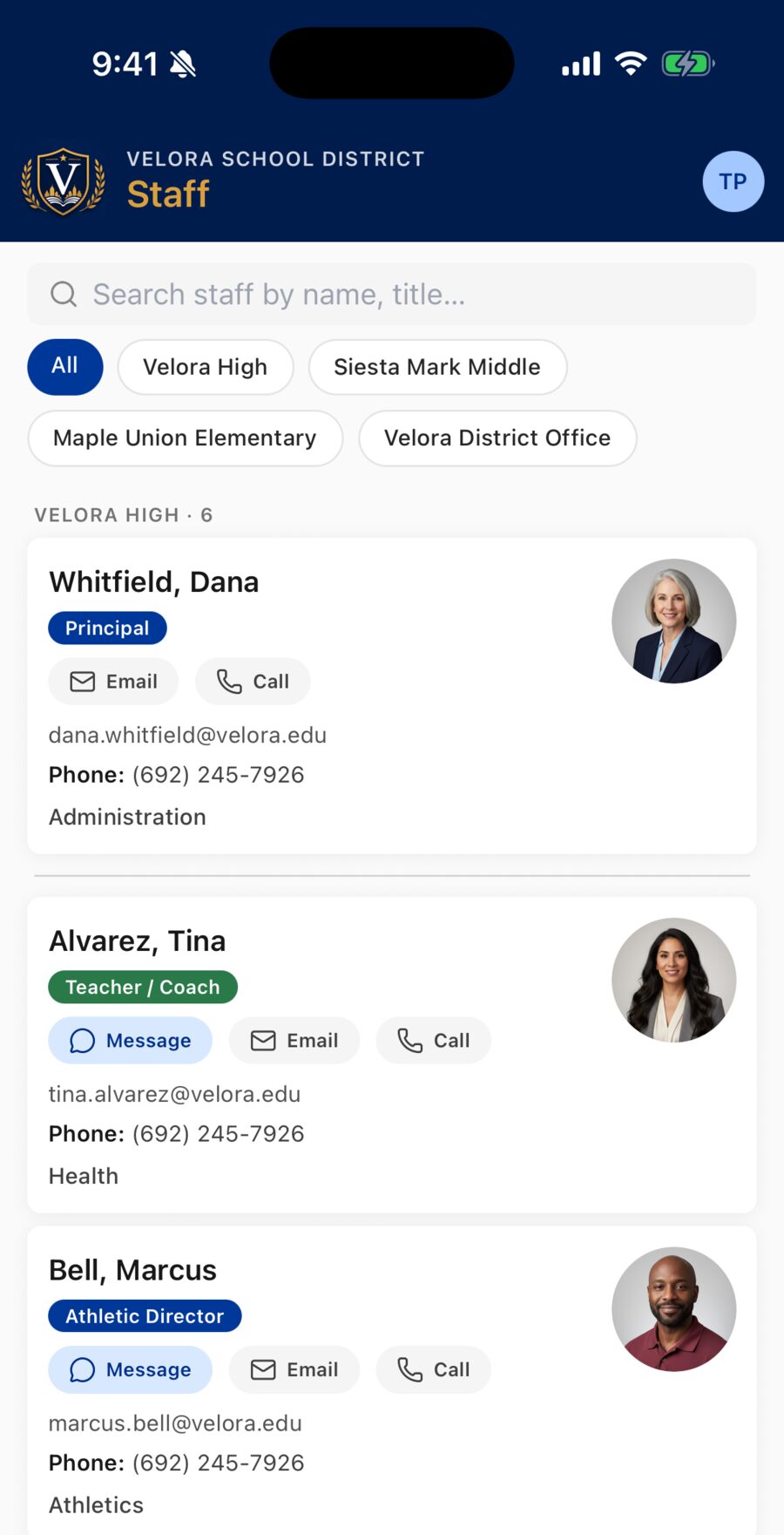
Open Staff to find teachers and staff across your whole district — every school at once, grouped by location. Use the filter chips across the top to jump straight to your building, or the search box to filter by name, title, subject, sport, grade level, department, or school. Each staff card can show a title, email, phone, what they teach or coach, and a short "About Me."
Schools can pin key people — a principal, the front office, an athletic director — above the alphabetical list, so the person you most likely need is right at the top.
Right under each person's name is a row of buttons — every way to reach them, in one place. The email address and phone number are listed below the buttons for reference.
- Message starts a private conversation right in the app. It appears only when you're signed in, your school has messaging turned on, and that staff member has a School Courier account and accepts messages — see Messages.
- Email opens a new email to them. If your phone doesn't have an email app set up, the app shows the address with a Copy Address button so you can paste it into Gmail, Outlook, or whichever email app you use — see Troubleshooting.
- Call dials their number. When someone lists both an office line and a cell, the buttons read Office and Cell.
Athletics
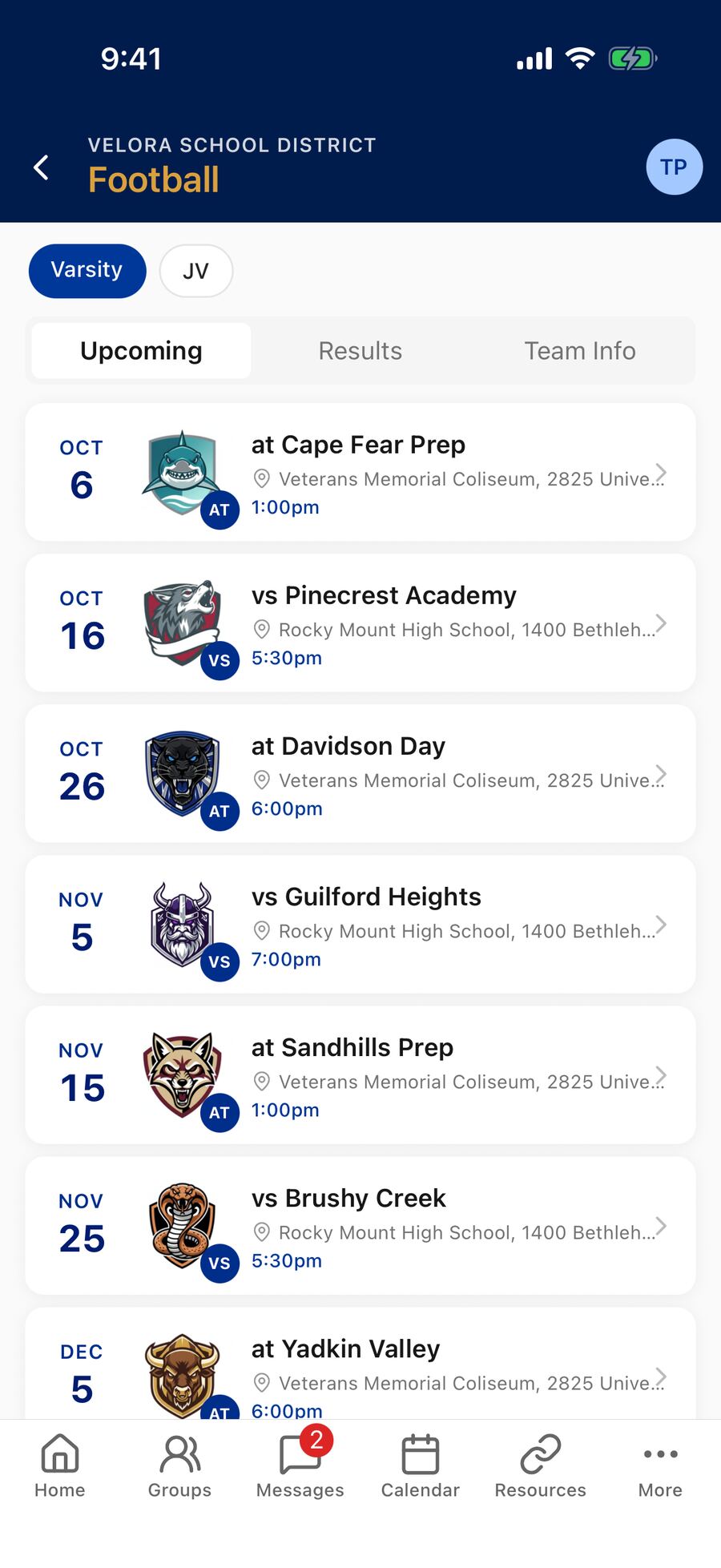
Open Athletics (some schools call it Sports) to follow your school's teams. Sports are grouped by level (such as Varsity and JV). Tap a sport to see:
- Upcoming — this season's future games with opponent, time, and location.
- Results — this season's past games with final scores and the team's win–loss record.
- Team Info — the head and assistant coaches, an About description, the Player Roster, and Recent Updates: the team's latest posts, pulled together from every group linked to that team. If one of those groups is private and you haven't joined it, its posts stay hidden.
Tap a game to view details, add it to your phone's calendar, or get directions to the venue. Games also appear on the main school calendar and the Today and Tomorrow cards on Home.
Practices and cancellations. When a team's schedule includes practices, a Practices pill above the list shows or hides them (shown by default, each labeled Practice). A game that's been called off stays on the schedule, grayed out with a Canceled chip — and on the calendar as Canceled: … — and doesn't count toward the record.
Weather
Open Weather for a local forecast from the U.S. National Weather Service: current conditions plus an upcoming forecast. Tap Open Radar to view the interactive National Weather Service radar for your area, where you can pan, zoom, and play the animation.
School Info
Open School Info for each school's contact details — address, phone, email, and a description. Tap the address to open maps and directions, the phone number to call, or the email to write to the office.
Supporters
Open Supporters to see the Local businesses and community members supporting the school. Tap a supporter to visit their website (when provided).
Alert History
Missed an alert? Open Alert History to review past alerts, newest first — anything sent in the past year, grouped into Last 24 hours and Earlier. If there aren't any yet, it reads No alerts yet with the note When the school sends an alert, it'll show up here.
Help & Support
Open Help & Support (in the More menu or your profile) to reach the school office or the app's technical support. See Troubleshooting for what's there.
Each school decides which of these pages to turn on and how to fill them in, so your app may show some of these and not others. A page that hasn't been set up will show an empty message like No resources available yet. or No supporters listed yet.
For staff & group leaders
The More menu may include a Content Manager link, which opens the Commander — your school's web management site for staff. Parents and students don't need it. How-tos for the Commander are in the staff help.
Administrators: the app's Resources links, staff directory, and supporters are managed in the Commander — see Admin Help.