
Settings & Profile
Your profile is where you update your details, manage notifications and groups, and sign out.
Opening your profile
Tap the circle in the top-right corner of any main screen — it shows your initials when you're signed in. That opens your Profile.
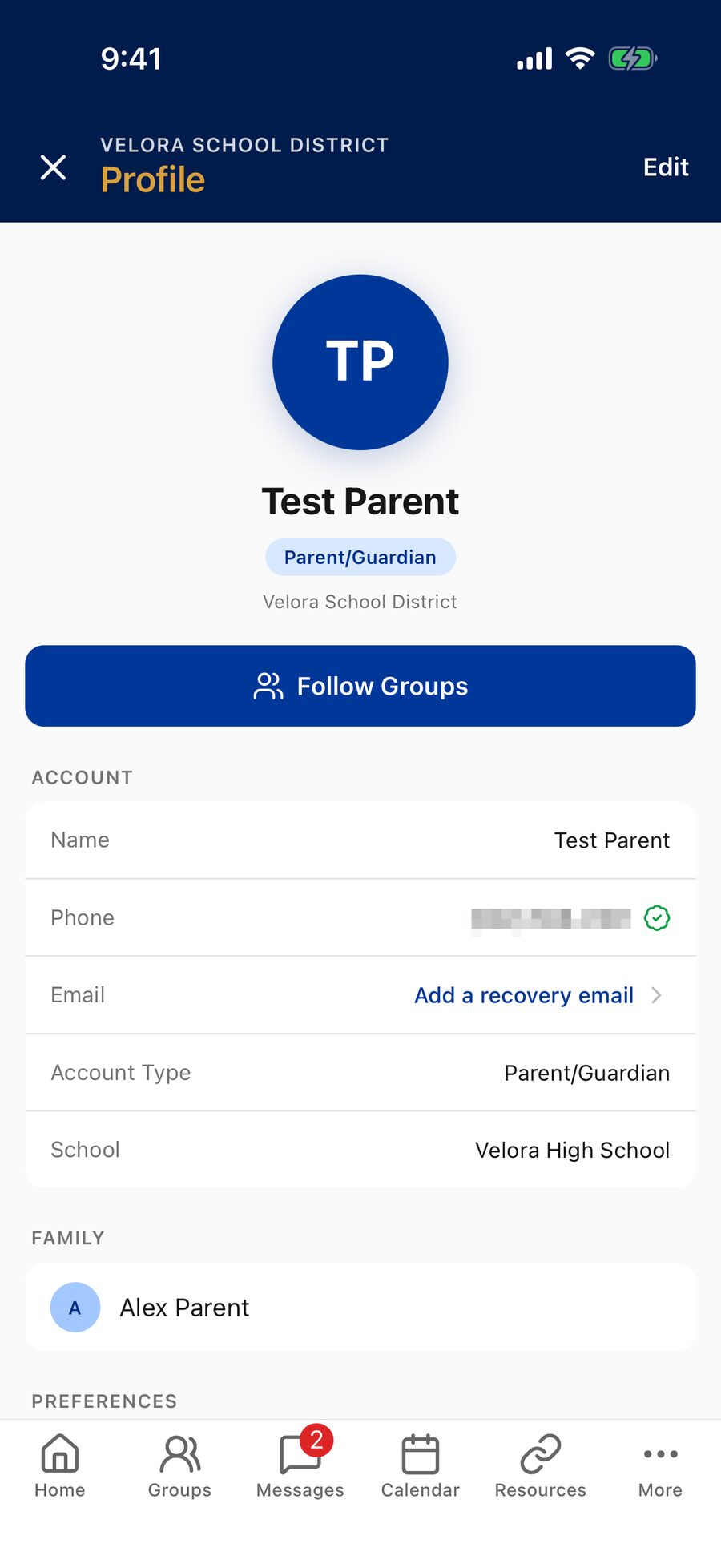
What's on your profile
- Follow Groups — jump to My Groups to follow classes, teams, and clubs. See Groups.
- Account — your name, phone, email, account type, and school. A green check means a phone number or email is verified. (Staff also see their Name Shown in Posts.) Signed up with only a phone number? Tap Add a recovery email so you can still sign in if you change phones.
- Family — the children you've added (shown once you've added some).
- Preferences — Notifications, Office Hours (staff), Set a Password (or Change Password), Blocked Users, and Help & Support.
- Sign Out — at the bottom, with Delete Account beneath it.
Blocked Users lists people you've blocked from the feed — tap Unblock next to a name to see their posts and comments again. See My Feed.
Editing your profile
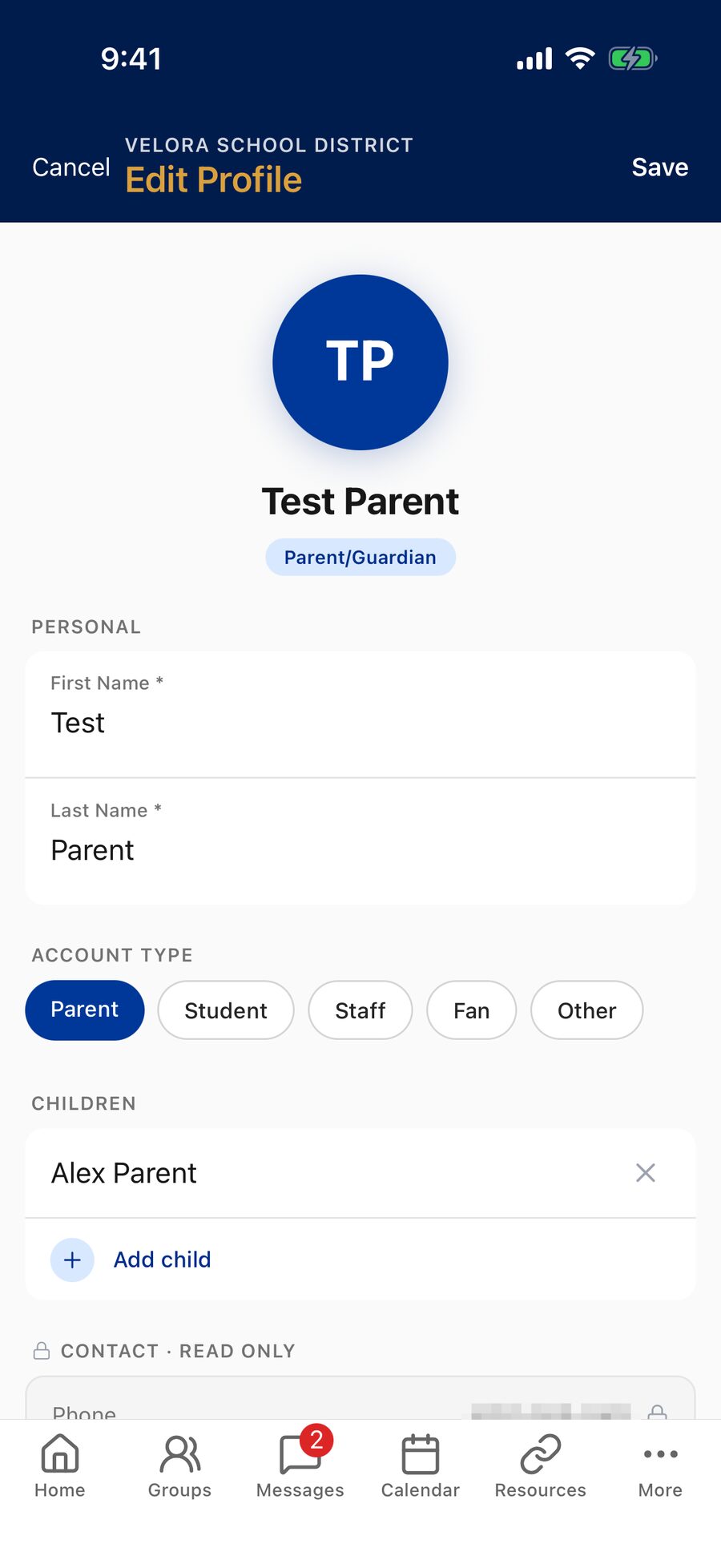
Tap Edit at the top of your profile to update:
- First Name and Last Name (both required). Letters, spaces, hyphens, apostrophes, periods, and parentheses are allowed — so a nickname like Robert (Bob) works.
- Name Shown in Posts — staff only: how your name appears on your posts, such as Ms. Smith.
- Account Type — choose Parent, Student, Staff, Fan, or Other.
- Children — add or remove children with Add child. If you haven't added any, it shows No children added yet. The field is available to parents, staff, and Other accounts — filling it in lets staff find you in message search by your student's name, and shows on your join requests so group leaders know which family is asking.
Tap Save to keep your changes. You'll return to your profile with a Profile saved confirmation.
Your phone number is shown as read‑only on the edit screen. It's how the school verifies and reaches you, so it's changed by your school rather than in the app — contact your school administrator.
Your email you can change yourself: on your Profile, tap Change (or Verify) next to your email address, enter the new address, and confirm the 6‑digit code sent to it. Once confirmed, the new address becomes the email you sign in with.
Office hours (staff)
If your account type is Staff, your profile has an Office Hours row under Preferences. Parents and students see these hours at the top of a conversation with you, and when they message you outside them the app tells them to expect a reply during office hours.
- School default uses the hours your school set (shown on the screen), Custom lets you pick your own days and start/end times, and None means you're treated as always available.
- Show read receipts during office hours — when it's on, parents and students only see Read for messages you open during your office hours; anything you read outside them stays Sent on their side. Turn it off to hide your read receipts from parents and students completely. (You always see when a parent has read your message.)
- Hold notifications outside office hours — messages from parents and students still arrive, but your phone stays quiet until your next office hours begin. Messages from other staff always notify.
Times follow your school's timezone. Your school's administrators can also set these for you from the Commander.
Notification preferences
From Preferences → Notifications, switch Alerts, Messages, and Comments on or off (group owners and leaders also get Approval reminders). To control a specific group's posts, tap the bell next to that group on My Groups instead. Full details are in Notifications.
Followed schools and groups
- Groups you follow are managed on My Groups (tap Groups in the bottom bar, or Follow Groups on your profile). Tap Join to follow a group, or Joined to leave it. Your joined groups sort to the top, and a search bar appears in districts with many groups.
- School: most apps are built for one specific school or district and open straight to it. In a district with several schools, tap Change on the school bar near the top of Home to switch — the calendar, menus, weather, resources, and supporters follow it. If you're using a general version that asked you to choose a district, that choice is remembered; to pick a different one, use More → Change school.
Signing out
- Open your profile.
- Scroll down and tap Sign Out.
- Confirm when asked — the app reminds you You can sign back in any time.
After signing out, you'll still get school-wide alerts (if notifications are on), but you'll need to sign back in to follow groups or message staff.
Deleting your account
If you no longer want a School Courier account, tap Delete Account at the very bottom of your profile.
- Read the explanation and tap Continue. Deleting removes your account and profile, and you may lose access to messages, groups, and announcements tied to it. It doesn't delete official school records your school is required to keep.
- Check I understand this is permanent. and tap Delete My Account.
- You're signed out, and your account is removed once the request is processed.
If you only want fewer notifications, mute a group or switch off a category instead — see Notifications. To get access back after deleting, create a new account or contact your school.
Uploading a custom profile picture isn't available yet — your initials are shown for now.