
Troubleshooting
Quick fixes for the most common questions. If something still isn't right, contacting support is at the bottom.
I'm not receiving notifications
- Make sure you allowed notifications. If you tapped Not now or Don't Allow earlier, turn them on in your phone's settings: iPhone → Settings → Notifications → (your school app); Android → Settings → Apps → (your school app) → Notifications.
- For group posts, confirm you're signed in, you've followed the group, and the group isn't muted (a red crossed-out bell next to the group's Joined button on My Groups means muted — tap it to turn notifications back on).
- For messages, make sure the Messages switch is on under Profile → Notifications.
- Check that your phone isn't in Do Not Disturb or a Focus mode that silences the app.
- Last resort: delete the app, reinstall it, and tap Allow when it asks about notifications on first launch — this re-registers your phone for alerts with a fresh connection. You'll need to sign in again afterward — your groups and settings are saved to your account and come right back.
More detail in Notifications.
I can't find a school or group
- Group not listed? It may be a hidden private group. Tap Have a passcode? Join a private group on My Groups and enter the code from your teacher or coach.
- Wrong passcode? Double-check it with the group leader and try again — the app will tell you if it's incorrect.
- Don't see Groups in the bottom bar? You need to be signed in. Tap Sign in in the top-right corner.
- Looking for your school in a general version of the app? Use the district search when prompted on first launch, and choose your school.
Calendar events are missing
- Pull down to refresh the calendar to load the latest events.
- Check the view selector at the top — switch between Events, Dining, and Combined to make sure you're looking at the right list.
- Events far in the future may be under the Upcoming section — tap to expand it.
- Showing just one group? If a group's name is highlighted in the chips above the list, you're seeing only that group's events — tap All.
- Looking for a class or team event? Group events only show for members of that group — make sure you've joined it on My Groups.
- Games appear on the main calendar and under Athletics — the team pages show the current season only.
- Seeing a game twice? Games from the Athletics schedule now land on the calendar automatically, so if your school also types them in by hand they'll show twice — let your school office know so they can drop the hand-typed copies.
Still missing? The event may not have been added yet by your school. See Calendars.
The dining menu isn't showing
- Pull down to refresh the Calendar, and check the Dining view.
- Make sure you're viewing the correct school for your family — in a district with several schools, tap Change on the school bar at the top of Home or Calendar.
- Not every school publishes menus in the app, and some only post certain days. If menus are never there, contact your school office. See Dining.
The app isn't updating
- Pull down to refresh the screen you're on.
- Check your internet connection (Wi‑Fi or cellular).
- Close and reopen the app fully — this also installs any waiting silent update.
- Check More → Help & Support for a Restart to update button, and install any pending update from the App Store or Google Play.
The full story — silent updates, the in-app update button, and store updates — is in Updating the App.
My post or comment is waiting for approval
Nothing's wrong — in many groups, what members and contributors share is reviewed by a group leader before everyone else sees it. Until it's approved, only you (and the approvers) can see it: a post shows Pending approval — only you can see this, and a comment shows Awaiting approval.
If a post isn't approved, you keep it, marked Not approved — edit to resubmit; edit it and it goes back for review. A comment that isn't approved stays marked Not approved where only you can see it — delete it and write a new one if you like. See Groups for how roles work.
I blocked someone by accident
Open your profile (the circle in the top-right), tap Blocked Users, and tap Unblock next to the name. Their posts and comments reappear right away. See Reporting & blocking.
Login or access issues
- Didn't get your code? On the Verify Code screen, tap Resend code. Make sure your phone number or email was typed correctly.
- Texts can't reach your phone? If we learn the text bounced — a landline, or a phone that can't receive texts right now — the Verify Code screen shows a Didn't get the text? card with Use an email address instead. Tap it, enter your email address, and we'll email you a code.
- Email code not arriving? Check your Spam or Promotions folder — it can take a minute. The Verify Code screen also offers Get the code by text instead.
- Code expired while you filled in the sign-up form? Codes last 30 minutes. If Create Account says yours expired, the form keeps everything you typed and offers Send a new code — enter the fresh code right there and tap Create Account again.
- Your phone filled in the wrong code? If you started with a text and then switched to your school email, your phone may still offer the code we texted. The screen tells you which code went where — use the newer one from the email.
- Your name shows as "TempUser"? An older sign-up path skipped the name step. The app now asks you to Finish setting up your account when it opens; you can also fix it any time from your profile → Edit.
- Using the wrong contact? Go back and switch between Mobile and Email on the sign-in screen.
- Staff can't be verified? Use your school email (not a personal one) so the school can confirm your role.
- Need to change your email? On your Profile, tap Change next to your email address and confirm the code sent to the new address.
- Need to change your phone number? Phone numbers are managed by your school — contact your school administrator.
"Couldn't start a conversation"
If you tap Message on a post or pick someone in a new message and the app says Couldn't start a conversation, the reason is shown underneath — often that the person isn't reachable by direct message at your school (for example, This staff member is not accepting direct messages.). Use their email or phone from the Staff Directory instead. See Messages.
A photo won't attach
If the app says Couldn't load that photo when you pick one from your library, the photo couldn't be read from your phone — usually because it's stored only in the cloud (iCloud or Google Photos) and hadn't finished downloading. Try again in a moment, or choose a different photo. It usually works on the second try.
Permission prompts
The app may ask for permission to:
- Send notifications — needed for alerts, group posts, and messages.
- Use the camera or photos — when you attach a photo to a message or a post.
- Add to your calendar — only when you tap Add to Calendar on an event.
If you said no earlier and want to change your mind, you can adjust each permission in your phone's settings for the app.
Tapping an email address or phone number doesn't open anything
When you tap an email address in the app (a staff member's, or a school contact), your phone hands it to its default email app. If your phone doesn't have one set up — common on iPhones where the built-in Mail app was deleted — the app shows the address with a Copy Address button instead, so you can paste it into Gmail, Outlook, or whichever email app you use.
- Want one-tap emailing back? On iPhone, set your preferred email app as the default: open your phone's Settings, search for Default Apps, and pick your email app under Email (Gmail and Outlook both support this). Reinstalling Apple's Mail app also works.
- The same applies to phone numbers on devices that can't place calls, such as tablets — you'll see the number with a Copy Number button.
Contacting support
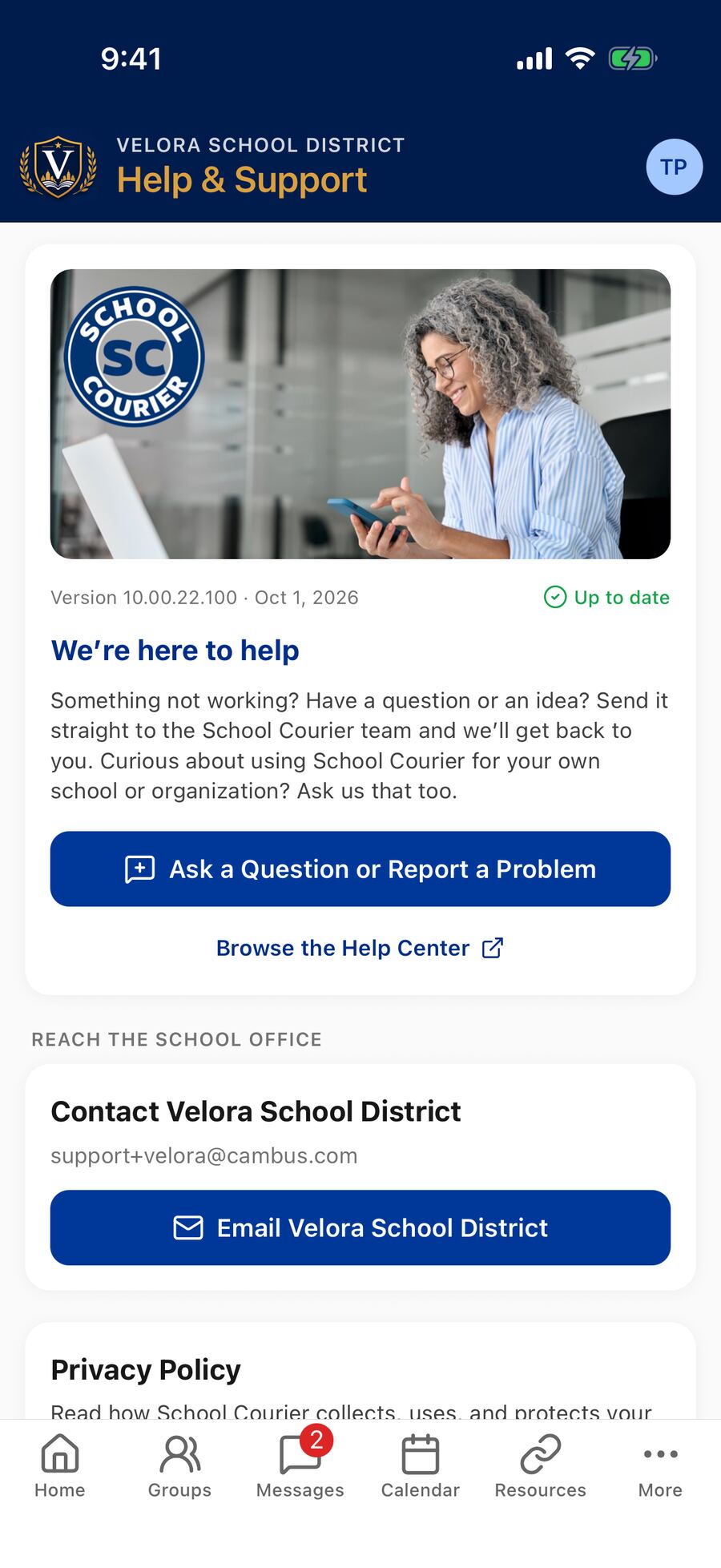
There are two ways to get help from inside the app — open Help & Support from the More tab or your profile:
- Trouble with the app, a question, or an idea: tap Ask a Question or Report a Problem. Pick what you need help with, describe it, and add a photo or screenshot with the camera and photo buttons under the message box. The form goes straight to the School Courier team; your app version and device details are included automatically. You'll get a reference number and a reply within one school day — by email, or by text if your account has only a phone number.
- Questions for your school (events, accounts, groups): use the Email [your school] button to reach the school office, when your school has provided an address.
Some schools also show a Questions about the app? card on Home — its Contact us button opens the same form.
Interested in School Courier for your own school, team, or organization? The same form has an option for that. You can also send us a message here.
When contacting support, describe what you tapped, what you expected, and what happened. A screenshot helps a lot.